
-
Home
- Better Admin for SMF 2.1
- Better Portal for SMF 2.1
- Theme Lab for SMF 2.1
- Better Gallery for SMF 2.1
- Better Chat for SMF 2.1
- Better Downloads for SMF 2.1
- Reactions & Likes for SNF 2.1
- Better Links for SMF 2.1
- Better Ads for SMF 2.1
- Better Contact for SMF 2.1
- Better Storage for SMF 2.1
- Better Tags for SMF 2.1
- Better Dark Mode for SMF 2.1
- Forum
- Search
- Gallery
-
 Downloads
- Welcome to Better SMF.
Recent posts
#1
General Discussion / Working on Tags MOD
Last post by admin - Oct 22, 2026, 09:57 AMWe started work a while back on Better Tags, a feature that I think has been missing from SMF for some time now.
I decided we were going to do this right and make sure it is up to our standards before release, and finally we are getting close.
This topic is actually using the MOD as it sits today, but of course we are still fixing bugs, adding what is missing and cutting the fat as well.
I decided we were going to do this right and make sure it is up to our standards before release, and finally we are getting close.
This topic is actually using the MOD as it sits today, but of course we are still fixing bugs, adding what is missing and cutting the fat as well.
#2
Better Storage / Setting up Amazon S3 for Bette...
Last post by admin - Oct 21, 2026, 08:08 AMSetting Up Amazon S3 for Better Storage
Better Storage can store files on your local server or in an Amazon S3 bucket.
This guide walks you through creating a private S3 bucket, creating credentials that Better Storage can use, connecting the bucket, and choosing which Better SMF features should use S3.
You do not need to make your bucket public.
Better Storage is designed to work with private S3 objects and can generate temporary signed download links when files need to be accessed.
Step 1 — Create your Amazon S3 bucket
Sign in to the AWS Management Console, open Amazon S3, choose General purpose buckets, and click:
Code Select
Create bucket
Choose a bucket name.
Bucket names must be globally unique.
Examples:
Code Select
myforum-storage
mydomain-smf-storage
Tip: I recommend avoiding periods in the bucket name.
Next, choose the AWS Region where you want the bucket located.
Examples:
Code Select
us-east-1
us-east-2
us-west-1
us-west-2
Write down the exact Region you select.
Better Storage will need it later.
Leave Object Ownership at its normal default:
Code Select
Bucket owner enforced
Leave:
Block all public access
ENABLED
You do not need to make the bucket public for Better Storage.
You can normally leave the remaining options at their defaults and click:
Code Select
Create bucket
Step 2 — Create an IAM user for Better Storage
Do not use your AWS root account access keys.
Open IAM in the AWS Console.
Go to:
Code Select
IAM
→ Users
→ Create user
Give the user an obvious name such as:
Code Select
better-storage
This account does not need AWS Console login access.
It only needs permission to work with the S3 bucket.
Create the user.
Step 3 — Give Better Storage access to only its bucket
Open your new better-storage IAM user and add an inline permissions policy.
A good Better Storage policy looks like this:
Code Select
{
  "Version": "2012-10-17",
  "Statement": [
    {
      "Sid": "BetterStorageBucket",
      "Effect": "Allow",
      "Action": [
        "s3:ListBucket"
      ],
      "Resource": [
        "arn:aws:s3:::YOUR-BUCKET-NAME"
      ]
    },
    {
      "Sid": "BetterStorageObjects",
      "Effect": "Allow",
      "Action": [
        "s3:GetObject",
        "s3:PutObject",
        "s3:DeleteObject"
      ],
      "Resource": [
        "arn:aws:s3:::YOUR-BUCKET-NAME/*"
      ]
    }
  ]
}
Replace:
Code Select
YOUR-BUCKET-NAME
with the actual name of the bucket you created.
For example:
Code Select
arn:aws:s3:::myforum-storage
and:
Code Select
arn:aws:s3:::myforum-storage/*
Better Storage needs:
Code Select
s3:ListBucket
to verify that it can reach the bucket.
It uses:
Code Select
s3:GetObject
s3:PutObject
s3:DeleteObject
to manage the files stored inside the bucket.
You do not need to give this user full AmazonS3FullAccess permissions.
Step 4 — Create an Access Key
Open:
Code Select
IAM
→ Users
→ better-storage
→ Security credentials
Scroll down to:
Access keys
and click:
Code Select
Create access key
AWS may show an Access key best practices & alternatives screen.
Because Better Storage is a server application connecting directly to S3, choose the applicable application use case or Other if shown.
Create the key.
AWS will give you two values:
Code Select
Access key ID
Secret access key
Save both somewhere secure.
AWS only displays the Secret Access Key when the key is created.
If you lose it, you must create a replacement key.
Never post your Access Key ID or Secret Access Key publicly.
Step 5 — Open Better Storage
In your SMF Administration Center go to:
Code Select
Administration Center
→ Configuration
→ Better Storage
Open the Better Storage settings page.
Under Amazon S3 Connection, you will see the S3 configuration fields.
Step 6 — Enter your AWS settings
AWS region
Enter the exact region selected when creating your bucket.
Example:
Code Select
us-east-1
S3 bucket
Enter only the bucket name.
Example:
Code Select
myforum-storage
Do not enter:
Code Select
https://...
or:
Code Select
s3://...
Just enter the bucket name.
Shared root prefix — optional
This lets you place everything Better Storage manages underneath one folder-like prefix inside the bucket.
Example:
Code Select
bettersmf
You may also leave this blank.
You do not have to manually create the prefix in S3.
Access key ID
Paste the IAM user's Access Key ID.
Secret access key
Paste the matching Secret Access Key.
Custom S3 endpoint — optional
For normal Amazon AWS S3:
Code Select
LEAVE THIS BLANK
This setting is mainly for other S3-compatible storage providers.
Private objects
Leave this:
Code Select
CHECKED
This is the recommended setup.
Step 7 — Test the connection
Before saving everything, click:
Code Select
Test Connection
A successful test should report something similar to:
QuoteConnection successful. Better Storage can reach and authenticate with this S3 bucket.
A successful test confirms that:
- the bucket name is correct
- the AWS Region is correct
- the Access Key ID is valid
- the Secret Access Key is valid
- the IAM user has permission to access the bucket
After a successful test, click:
Code Select
Save
Important: Testing the connection does not permanently save your settings.
Step 8 — Choose what should use S3
Once your S3 connection is configured, Better Storage lets supported integrations choose their storage backend individually.
Depending on which Better SMF packages you have installed, you may see integrations such as:
- Better Gallery
- Better Downloads
- Forum Attachments
- Better PM Attachments
- Better Chat
Each integration can normally be assigned to:
Code Select
Local server
or:
Code Select
Amazon S3
You do not have to move everything to S3 at once.
For example:
Code Select
Forum Attachments → Local server
Better Gallery → Amazon S3
Better PM Attachments → Amazon S3
You can switch the others later if you want.
Step 9 — Test with a real file
After routing one integration to Amazon S3, upload a small test file through that feature.
Then open your AWS S3 bucket.
You should see Better Storage creating objects underneath the configured prefix.
For example, if you entered:
Code Select
bettersmf
as your Shared Root Prefix, Better Storage files will be stored beneath that path.
Next go back to:
Code Select
Better Storage
→ Storage Overview
and confirm that the integration is reporting files stored in:
Code Select
Amazon S3
Important — Do not manually make your S3 files public
There is normally no reason to disable S3's Block Public Access.
Keep your bucket private.
Better Storage can generate temporary signed URLs when an authorized user needs to access an S3-backed file.
This gives you off-server storage without making your uploads publicly browsable.
Troubleshooting
Test Connection returns 403 or Access Denied
Check your IAM policy.
Make sure:
Code Select
s3:ListBucket
applies to:
Code Select
arn:aws:s3:::YOUR-BUCKET-NAME
and:
Code Select
s3:GetObject
s3:PutObject
s3:DeleteObject
apply to:
Code Select
arn:aws:s3:::YOUR-BUCKET-NAME/*
Signature or authorization errors
Double-check your AWS Region.
The region entered in Better Storage must match the region where the bucket was created.
Better Storage reports missing S3 settings
Check that you entered:
- Bucket name
- AWS Region
- Access Key ID
- Secret Access Key
PHP cURL required
Your web server must have the PHP cURL extension enabled.
Uploads fail
Verify the IAM account has:
Code Select
s3:PutObject
Downloads fail
Verify the IAM account has:
Code Select
s3:GetObject
Deleted files remain in the S3 bucket
Verify the IAM account has:
Code Select
s3:DeleteObject
Security Recommendations
- Never use your AWS root account credentials in Better Storage.
- Create a dedicated IAM user specifically for Better Storage.
- Give that user access only to the Better Storage bucket.
- Keep AWS Block Public Access enabled.
- Keep Better Storage's Private Objects option enabled.
- Never post your Access Key ID or Secret Access Key in support topics.
- If a Secret Access Key is exposed, deactivate or delete it immediately and create a new one.
Quick Setup Checklist
Code Select
[ ] Create private S3 bucket
[ ] Record the AWS Region
[ ] Leave Block Public Access enabled
[ ] Create dedicated IAM user
[ ] Add the Better Storage bucket policy
[ ] Create Access Key ID + Secret Access Key
[ ] Enter credentials in Better Storage
[ ] Leave Custom Endpoint blank for AWS
[ ] Keep Private Objects checked
[ ] Click Test Connection
[ ] Click Save
[ ] Route one integration to Amazon S3
[ ] Upload a test file
[ ] Confirm it appears in Storage Overview
That's it!
Once the connection test succeeds and your first file appears in the bucket, Better Storage is officially using Amazon S3. 😎
Once the connection test succeeds and your first file appears in the bucket, Better Storage is officially using Amazon S3. 😎
#3
Theme Share / Halloween Theme
Last post by admin - Oct 17, 2026, 07:39 PMThis is the theme I created for this Halloween.
Enjoy it!
Enjoy it!
#4
Better Contact / How to Add a Contact Form to S...
Last post by admin - Oct 14, 2026, 08:39 AMHow to Add a Contact Form to SMF 2.1 with Better Contact
SMF forums often rely on email links or private messages when visitors need to contact staff.
That works, but it can expose email addresses, create extra steps for guests, and split communication between the forum and outside inboxes.
Better Contact adds a dedicated contact form to SMF 2.1 so visitors can reach staff through the site while keeping the communication organized inside the forum.
This guide walks through the basic setup.
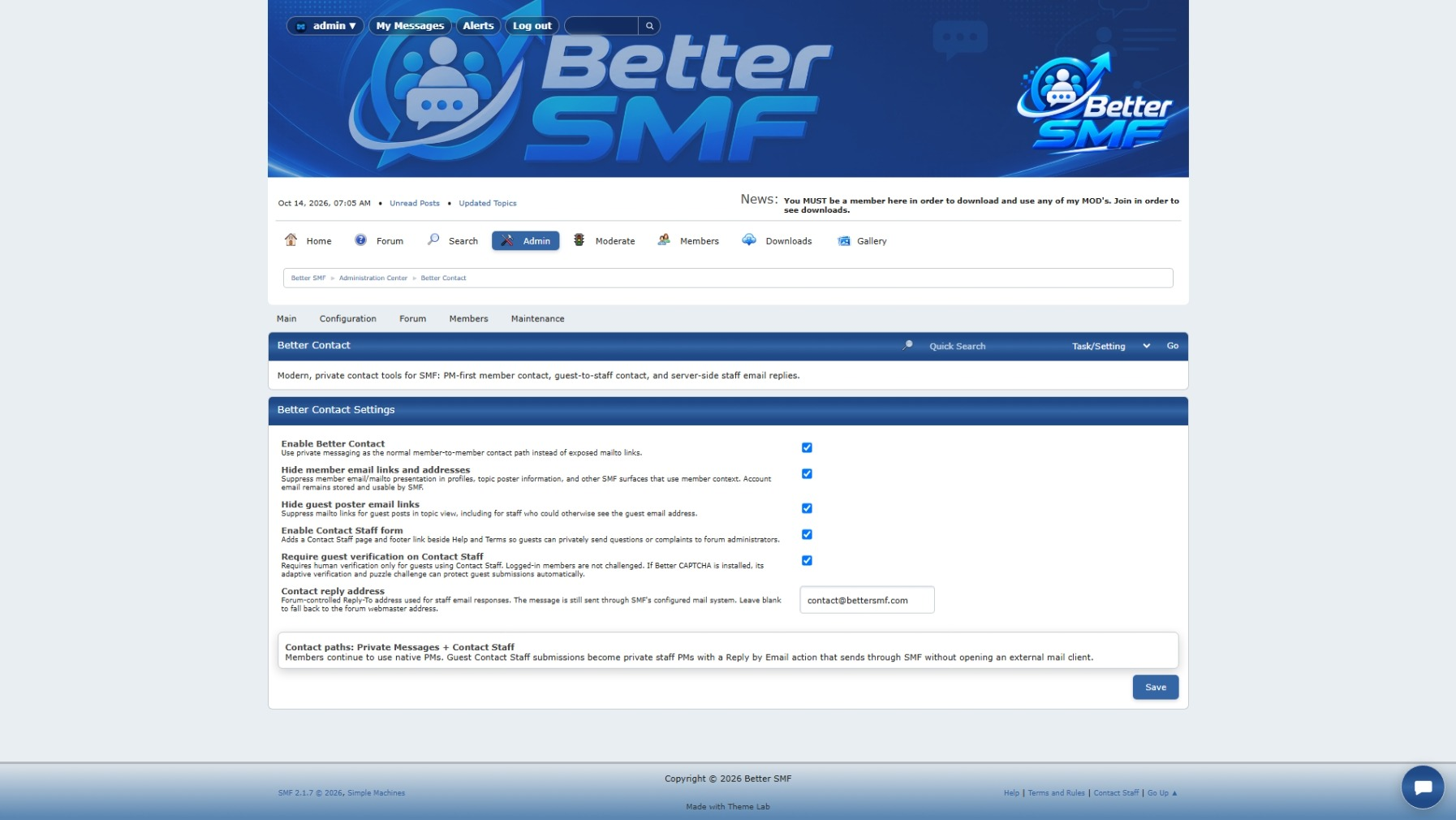
1. Open Better Contact in the Admin Center
After installing Better Contact, open the SMF Admin Center and go to the Better Contact settings area.
This is where you control how the contact form behaves and who is allowed to use it.
2. Enable Better Contact
Make sure the contact system is enabled.
Once active, Better Contact can provide a dedicated Contact Us page instead of relying on a traditional mailto link.
This keeps visitors inside the site and gives staff a more consistent way to receive contact requests.
3. Decide who can use the contact form
Better Contact can support both registered members and guests.
This is useful because some of the people who need help most may not be able to log in.
Examples include:
Choose the access settings that make sense for your community.
4. Add the Contact Us link
Better Contact can provide a Contact Us link in the footer.
This gives visitors a predictable place to reach staff from anywhere on the forum.
Once enabled, test the footer link and make sure it opens the Better Contact form correctly.
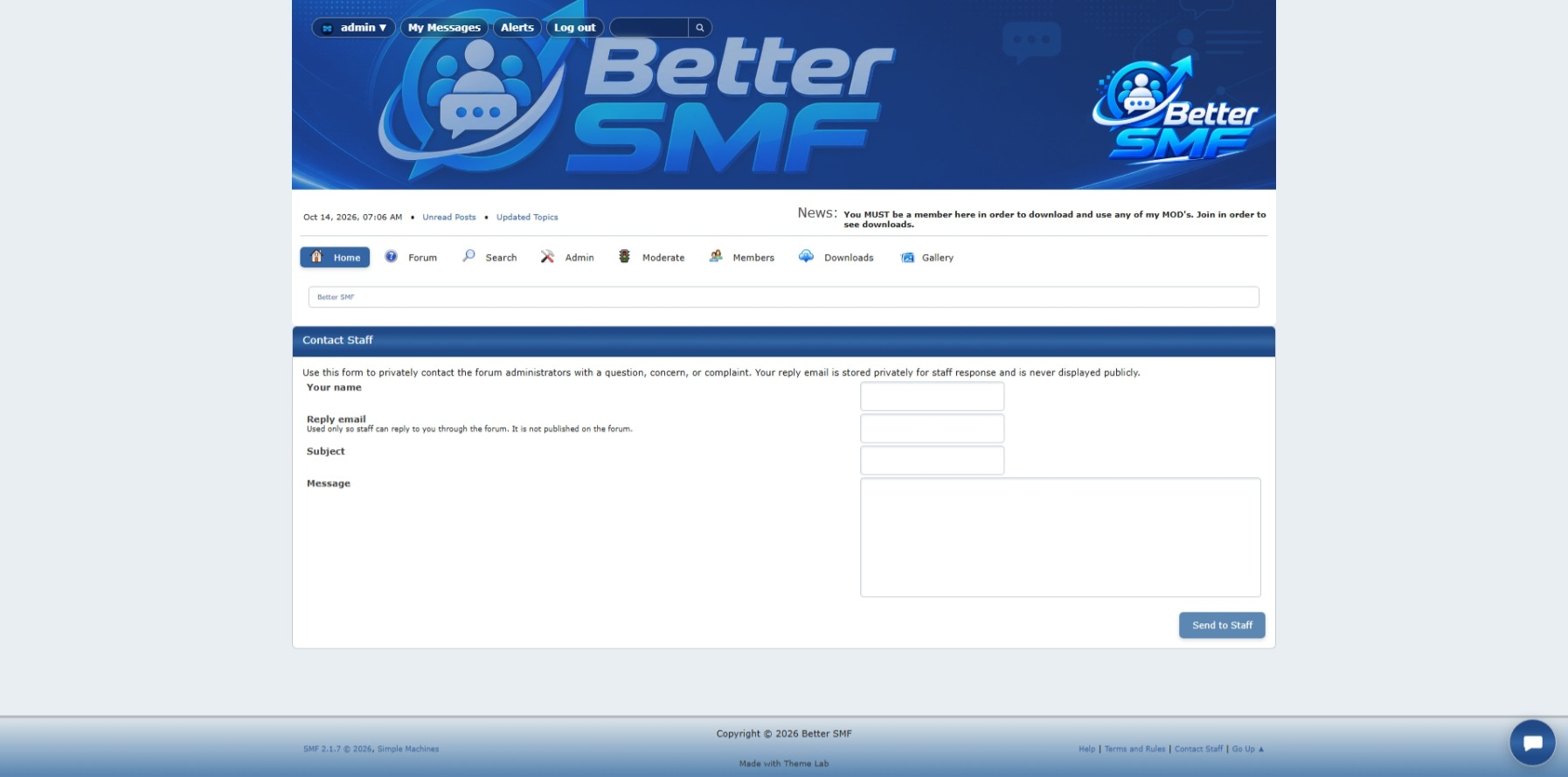
5. Review the public contact form
Open the contact page as a normal member or guest.
The form should provide the fields needed to send a clear message to staff.
Depending on your setup, that may include things such as:
Keep the form simple enough that visitors can complete it quickly.
6. Submit a test message
Send a test request through the contact form.
Use a normal member account and, if guest contact is enabled, test from a logged-out browser as well.
This lets you confirm that both workflows behave the way you expect.
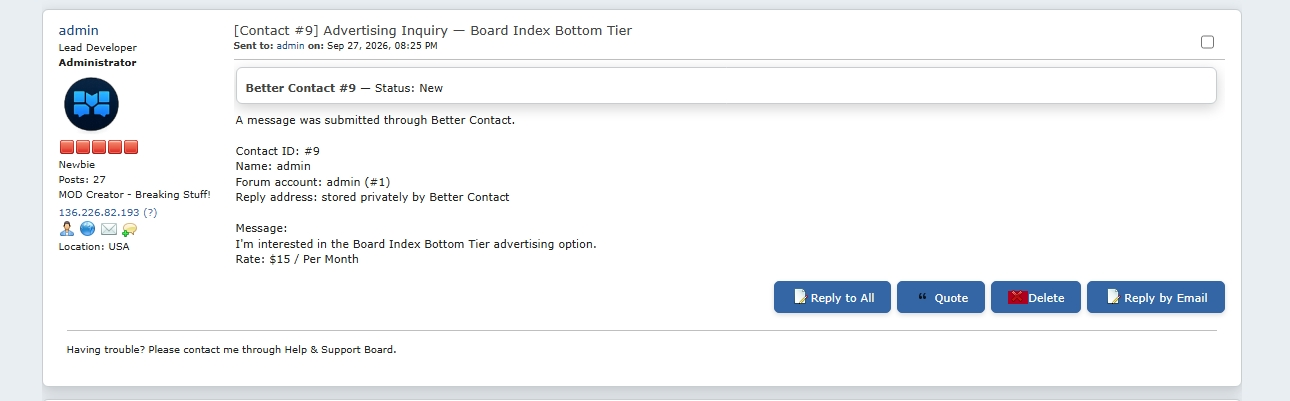
7. Check how staff receive the message
Better Contact can deliver contact requests into SMF private messaging.
That means staff can review the request from inside the forum instead of checking a completely separate support system.
Open the received message and verify that the important information from the contact form is present.
8. Reply through SMF when appropriate
If the person contacting the site is a registered member, replying through SMF may be the easiest option.
The conversation stays inside the forum and remains connected to the member account.
This works well for normal support or community questions.
9. Use Reply by Email for guests
When the contact request comes from a guest, replying through SMF may not be possible.
Better Contact can provide a Reply by Email option so staff can respond directly to the email address supplied by the visitor.
This keeps the initial contact inside the forum while still allowing the reply to reach someone who does not have an account.
10. Configure SMTP
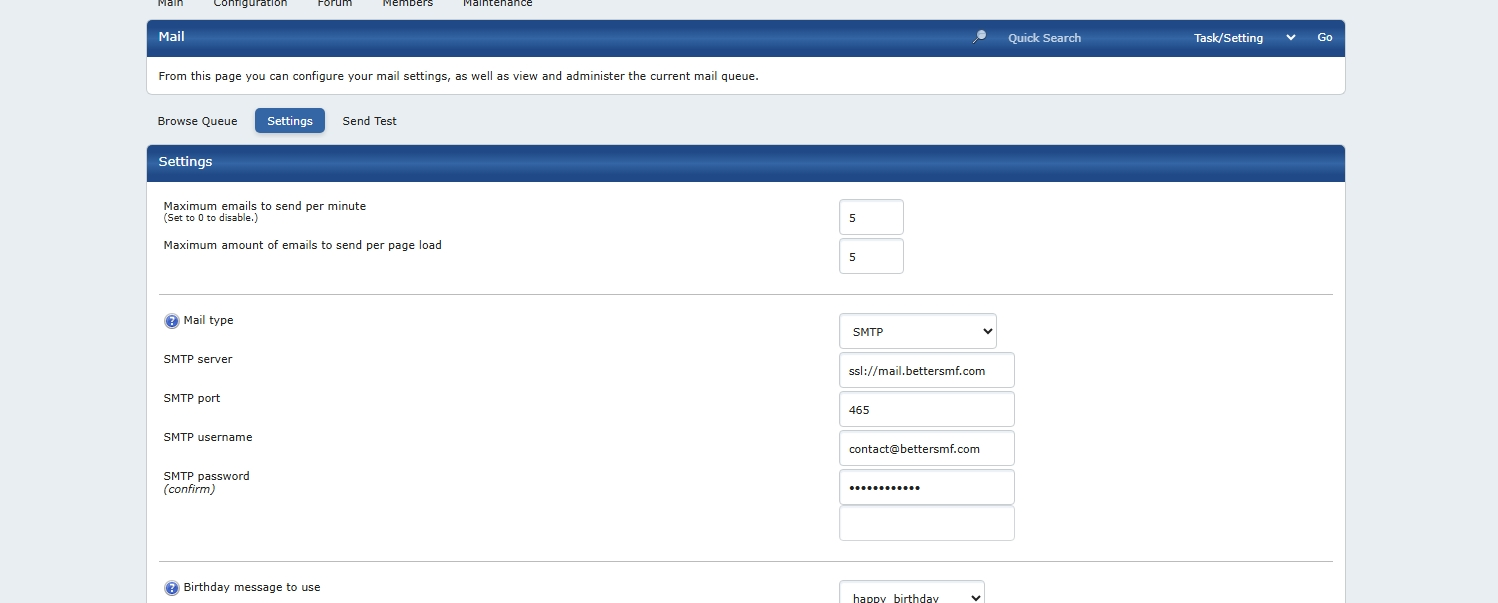
For reliable Reply by Email delivery, make sure SMF has working outgoing email configuration.
Using SMTP is often the best option because mail is sent through an authenticated email account or mail server instead of relying entirely on the web server's local mail configuration.
The exact settings depend on your email provider.
Typical SMTP settings include:
These settings are normally configured through SMF's mail settings.
11. Get SMTP settings from your host or email provider
If you are not sure which SMTP settings to use, check the documentation for your hosting company or email provider.
You can also contact your host and ask:
They should be able to provide the correct server name, port, encryption method, and authentication requirements.
12. Common SMTP ports
Different mail providers use different configurations, but commonly used SMTP ports include:
Do not assume one is correct for your provider.
Always use the settings supplied by your host or email service.
13. Test outgoing email
After SMTP is configured, send a test email through SMF if your setup provides that option.
Then submit another Better Contact request and use Reply by Email.
Confirm that:
14. Keep staff email addresses private
One advantage of Better Contact is that the public contact page does not need to expose staff email addresses.
Visitors use the form instead.
This can help reduce:
The visitor still gets a clear contact method without needing to know the actual staff email address.
15. Test guest access carefully
If guest contact is enabled, log out and test the full process.
Confirm that:
Guest workflows are worth testing separately because administrators often miss permission or validation issues while testing from an admin account.
16. Test member contact
Log in with a normal member account and send another request.
Make sure the form behaves correctly and that the request reaches staff with the expected member information.
This confirms that both guest and registered-user workflows are functioning.
17. Better Ads integration
If Better Ads is installed, Better Contact can be used as part of the advertising workflow.
For example, an Advertise With Us page can route an inquiry through Better Contact.
The subject can be prepared automatically so staff immediately know the message relates to advertising.
This avoids forcing advertisers to manually explain where their request came from.
18. Use clear subjects
Clear subjects make contact requests easier for staff to manage.
Depending on how your site is organized, subjects might include:
If another Better SMF MOD sends users into Better Contact, prefilled subjects can make this even easier.
19. Test the complete workflow
Before considering the setup finished, test the whole process from start to finish.
Try:
This helps make sure visitors will not discover a problem before you do.
A cleaner way to handle contact requests
Better Contact keeps the contact experience connected to SMF.
Visitors get a simple form.
Staff receive organized messages.
Members can be answered through the forum.
Guests can be answered by email.
And staff email addresses do not have to be exposed publicly.
SMF forums often rely on email links or private messages when visitors need to contact staff.
That works, but it can expose email addresses, create extra steps for guests, and split communication between the forum and outside inboxes.
Better Contact adds a dedicated contact form to SMF 2.1 so visitors can reach staff through the site while keeping the communication organized inside the forum.
This guide walks through the basic setup.
1. Open Better Contact in the Admin Center
After installing Better Contact, open the SMF Admin Center and go to the Better Contact settings area.
This is where you control how the contact form behaves and who is allowed to use it.
2. Enable Better Contact
Make sure the contact system is enabled.
Once active, Better Contact can provide a dedicated Contact Us page instead of relying on a traditional mailto link.
This keeps visitors inside the site and gives staff a more consistent way to receive contact requests.
3. Decide who can use the contact form
Better Contact can support both registered members and guests.
This is useful because some of the people who need help most may not be able to log in.
Examples include:
- Registration questions
- Account access problems
- Pre-membership questions
- Advertising inquiries
- General site feedback
Choose the access settings that make sense for your community.
4. Add the Contact Us link
Better Contact can provide a Contact Us link in the footer.
This gives visitors a predictable place to reach staff from anywhere on the forum.
Once enabled, test the footer link and make sure it opens the Better Contact form correctly.
5. Review the public contact form
Open the contact page as a normal member or guest.
The form should provide the fields needed to send a clear message to staff.
Depending on your setup, that may include things such as:
- Name
- Email address
- Subject
- Message
Keep the form simple enough that visitors can complete it quickly.
6. Submit a test message
Send a test request through the contact form.
Use a normal member account and, if guest contact is enabled, test from a logged-out browser as well.
This lets you confirm that both workflows behave the way you expect.
7. Check how staff receive the message
Better Contact can deliver contact requests into SMF private messaging.
That means staff can review the request from inside the forum instead of checking a completely separate support system.
Open the received message and verify that the important information from the contact form is present.
8. Reply through SMF when appropriate
If the person contacting the site is a registered member, replying through SMF may be the easiest option.
The conversation stays inside the forum and remains connected to the member account.
This works well for normal support or community questions.
9. Use Reply by Email for guests
When the contact request comes from a guest, replying through SMF may not be possible.
Better Contact can provide a Reply by Email option so staff can respond directly to the email address supplied by the visitor.
This keeps the initial contact inside the forum while still allowing the reply to reach someone who does not have an account.
10. Configure SMTP
For reliable Reply by Email delivery, make sure SMF has working outgoing email configuration.
Using SMTP is often the best option because mail is sent through an authenticated email account or mail server instead of relying entirely on the web server's local mail configuration.
The exact settings depend on your email provider.
Typical SMTP settings include:
- SMTP server or hostname
- Port
- Username
- Password
- Encryption type
These settings are normally configured through SMF's mail settings.
11. Get SMTP settings from your host or email provider
If you are not sure which SMTP settings to use, check the documentation for your hosting company or email provider.
You can also contact your host and ask:
QuoteWhat SMTP settings should I use to send authenticated email from my website?
They should be able to provide the correct server name, port, encryption method, and authentication requirements.
12. Common SMTP ports
Different mail providers use different configurations, but commonly used SMTP ports include:
- 587 for STARTTLS
- 465 for implicit SSL/TLS
Do not assume one is correct for your provider.
Always use the settings supplied by your host or email service.
13. Test outgoing email
After SMTP is configured, send a test email through SMF if your setup provides that option.
Then submit another Better Contact request and use Reply by Email.
Confirm that:
- The message sends successfully
- The visitor receives it
- The sender address looks correct
- The reply does not land in spam if possible
14. Keep staff email addresses private
One advantage of Better Contact is that the public contact page does not need to expose staff email addresses.
Visitors use the form instead.
This can help reduce:
- Spam harvesting
- Automated junk mail
- Unnecessary public exposure of staff addresses
The visitor still gets a clear contact method without needing to know the actual staff email address.
15. Test guest access carefully
If guest contact is enabled, log out and test the full process.
Confirm that:
- The Contact Us page is available
- The form submits correctly
- The staff message is created
- The guest email address is preserved
- Reply by Email works
Guest workflows are worth testing separately because administrators often miss permission or validation issues while testing from an admin account.
16. Test member contact
Log in with a normal member account and send another request.
Make sure the form behaves correctly and that the request reaches staff with the expected member information.
This confirms that both guest and registered-user workflows are functioning.
17. Better Ads integration
If Better Ads is installed, Better Contact can be used as part of the advertising workflow.
For example, an Advertise With Us page can route an inquiry through Better Contact.
The subject can be prepared automatically so staff immediately know the message relates to advertising.
This avoids forcing advertisers to manually explain where their request came from.
18. Use clear subjects
Clear subjects make contact requests easier for staff to manage.
Depending on how your site is organized, subjects might include:
- Account Help
- Advertising Inquiry
- Registration Problem
- General Question
- Site Feedback
If another Better SMF MOD sends users into Better Contact, prefilled subjects can make this even easier.
19. Test the complete workflow
Before considering the setup finished, test the whole process from start to finish.
Try:
- Guest contact
- Member contact
- Staff PM delivery
- Reply through SMF
- Reply by Email
- SMTP delivery
- Footer Contact Us link
- Better Ads integration if installed
This helps make sure visitors will not discover a problem before you do.
A cleaner way to handle contact requests
Better Contact keeps the contact experience connected to SMF.
Visitors get a simple form.
Staff receive organized messages.
Members can be answered through the forum.
Guests can be answered by email.
And staff email addresses do not have to be exposed publicly.
Simple contact. Private communication. Better support.
#5
Better Ads / How to Add Advertising to SMF ...
Last post by admin - Oct 13, 2026, 09:09 AMHow to Add Advertising to SMF 2.1 with Better Ads
Running advertising on an SMF forum can get messy fast if placements, advertiser requests, payments, campaign dates, and statistics are all handled separately.
Better Ads brings those pieces together inside SMF so you can create campaigns, place ads throughout the site, accept advertiser requests, track payment status, and monitor performance from one system.
This guide walks through the basic setup.
1. Open Better Ads in the Admin Center
After installing Better Ads, open the SMF Admin Center and go to Better Ads.
The administration area is organized into sections for things such as:
Start with the main settings, then build out the advertising structure one piece at a time.
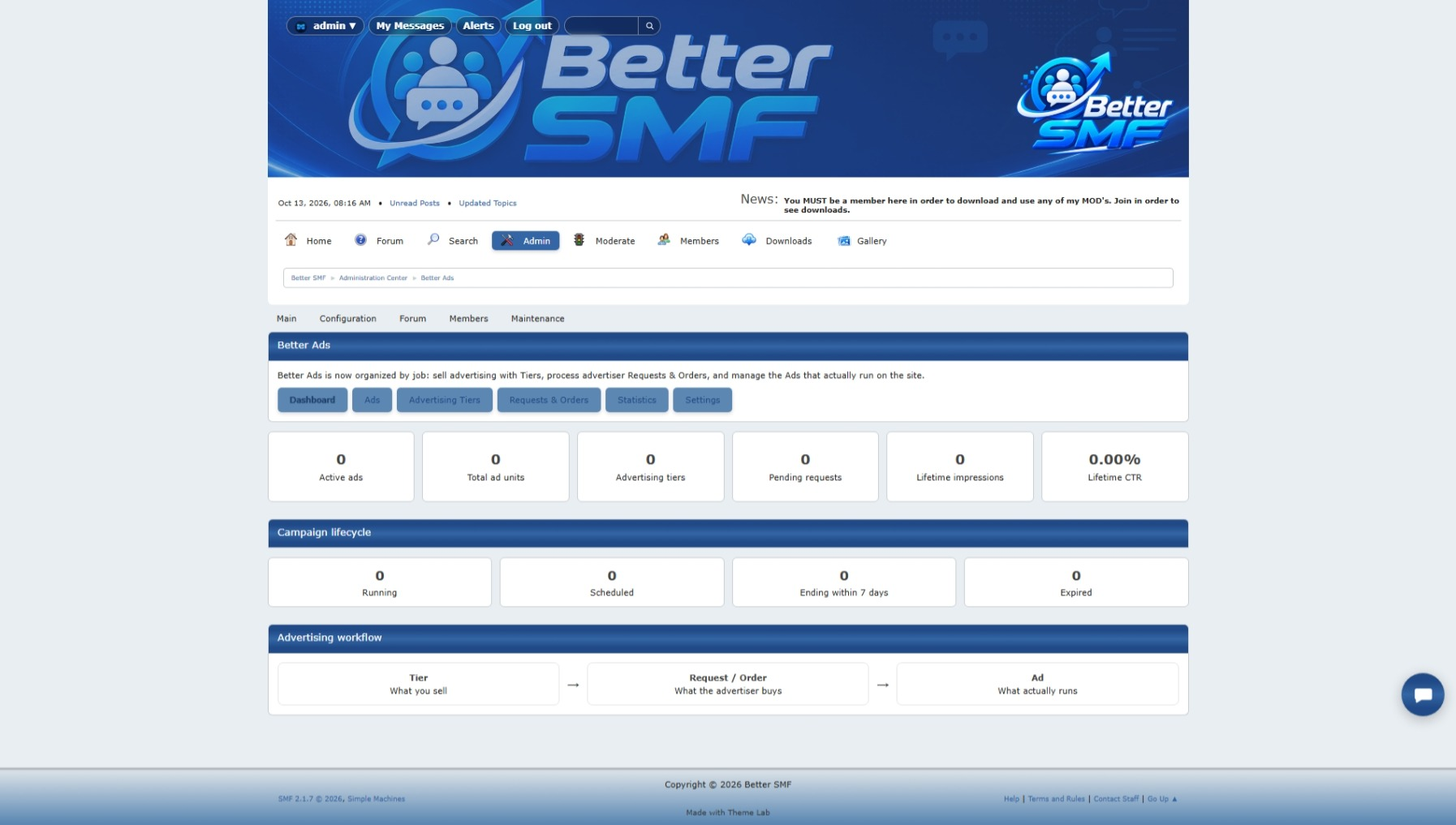
2. Configure the main settings
Review the Better Ads settings before creating campaigns.
Depending on your setup, you can control things such as:
This is also a good time to decide whether advertising will be managed entirely by staff or whether outside advertisers can submit requests.
3. Set up ad placements
Placements determine where campaigns are allowed to appear.
Better Ads can support advertising in locations such as:
Create or enable the placements that make sense for your site.
You do not have to use every location.
A smaller site might only use header and Portal placements, while a larger community may want ads throughout the forum.
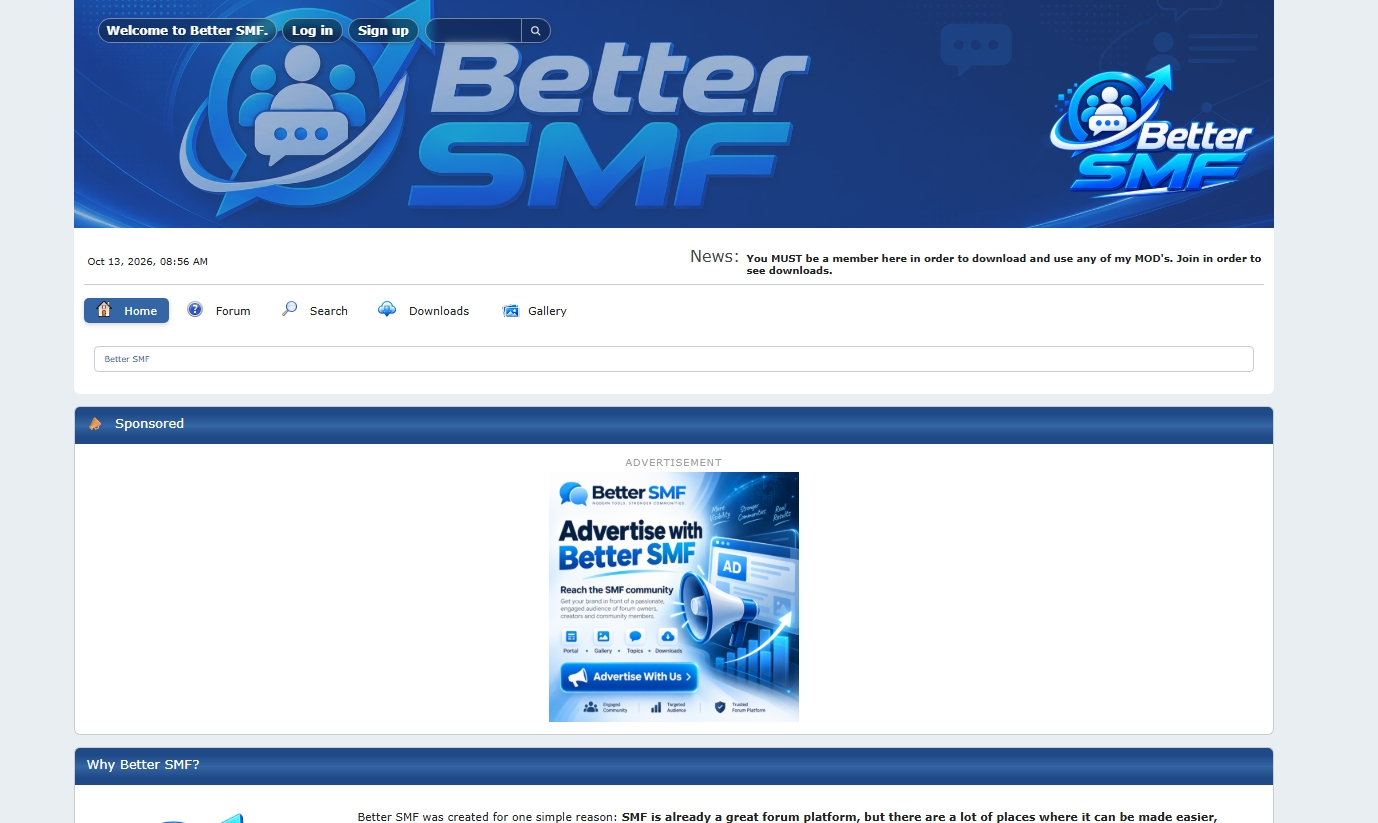
4. Create an ad
Open the Ads section and create a new campaign.
Depending on the type of ad, you can configure information such as:
Use a clear campaign name so it remains easy to identify later in the admin area.
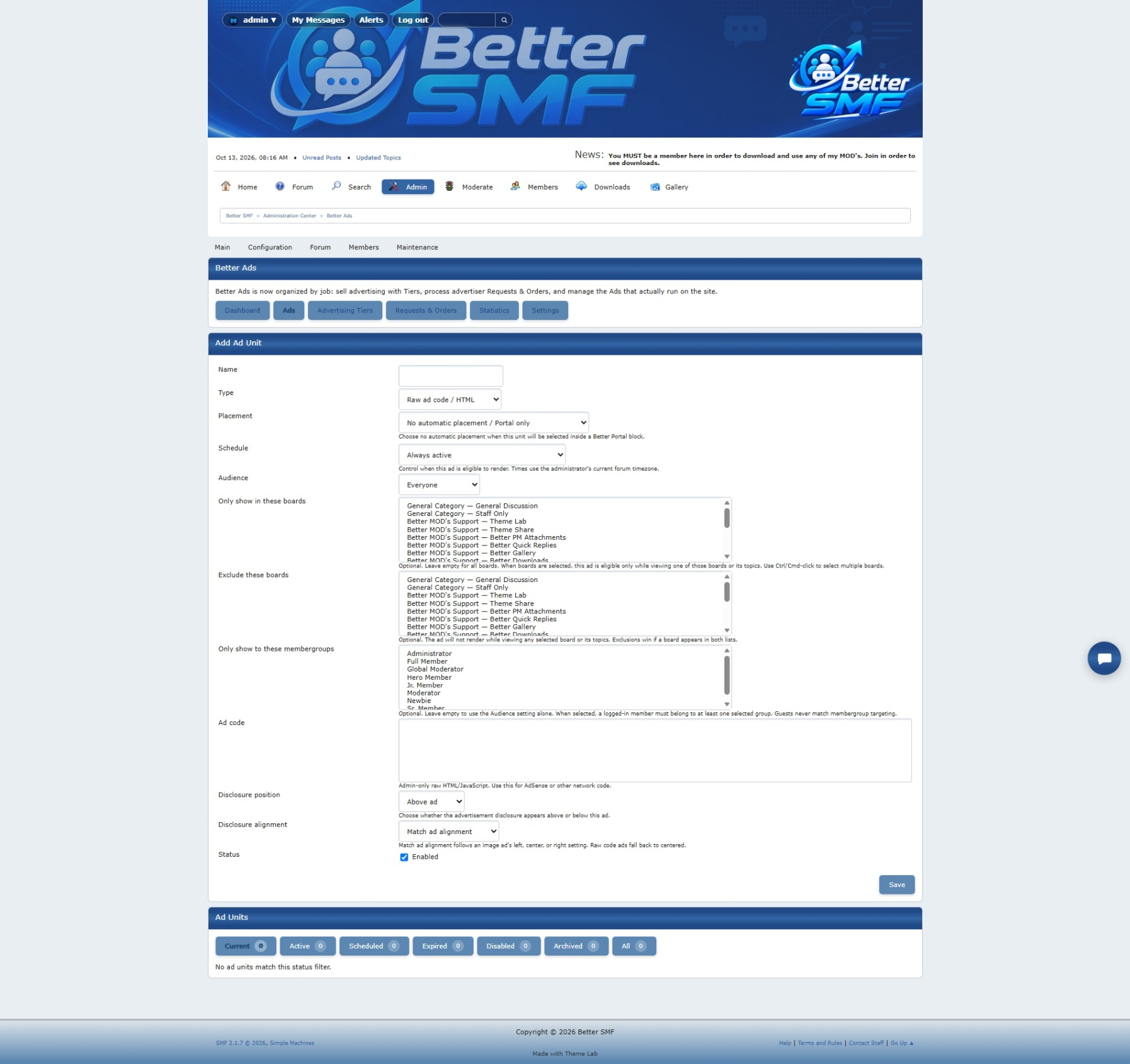
5. Choose the placement and alignment
Assign the campaign to the placement where it should appear.
Depending on the placement, Better Ads can also control alignment so the creative fits the surrounding layout properly.
For example, an ad may need to be:
Check the live page after saving to make sure the ad looks appropriate in the actual forum layout.
6. Add campaign dates
Advertising campaigns often run for a limited period.
Set a start date and end date when appropriate.
Better Ads can then control when the campaign is active automatically.
This means you do not have to remember to manually remove the ad when the campaign ends.
Expired campaigns can stop displaying while still remaining available in the admin area for reference.
7. Understand campaign status
Better Ads can track campaigns through different stages.
Typical statuses can include:
This gives administrators a quick way to understand where every campaign is in the workflow.
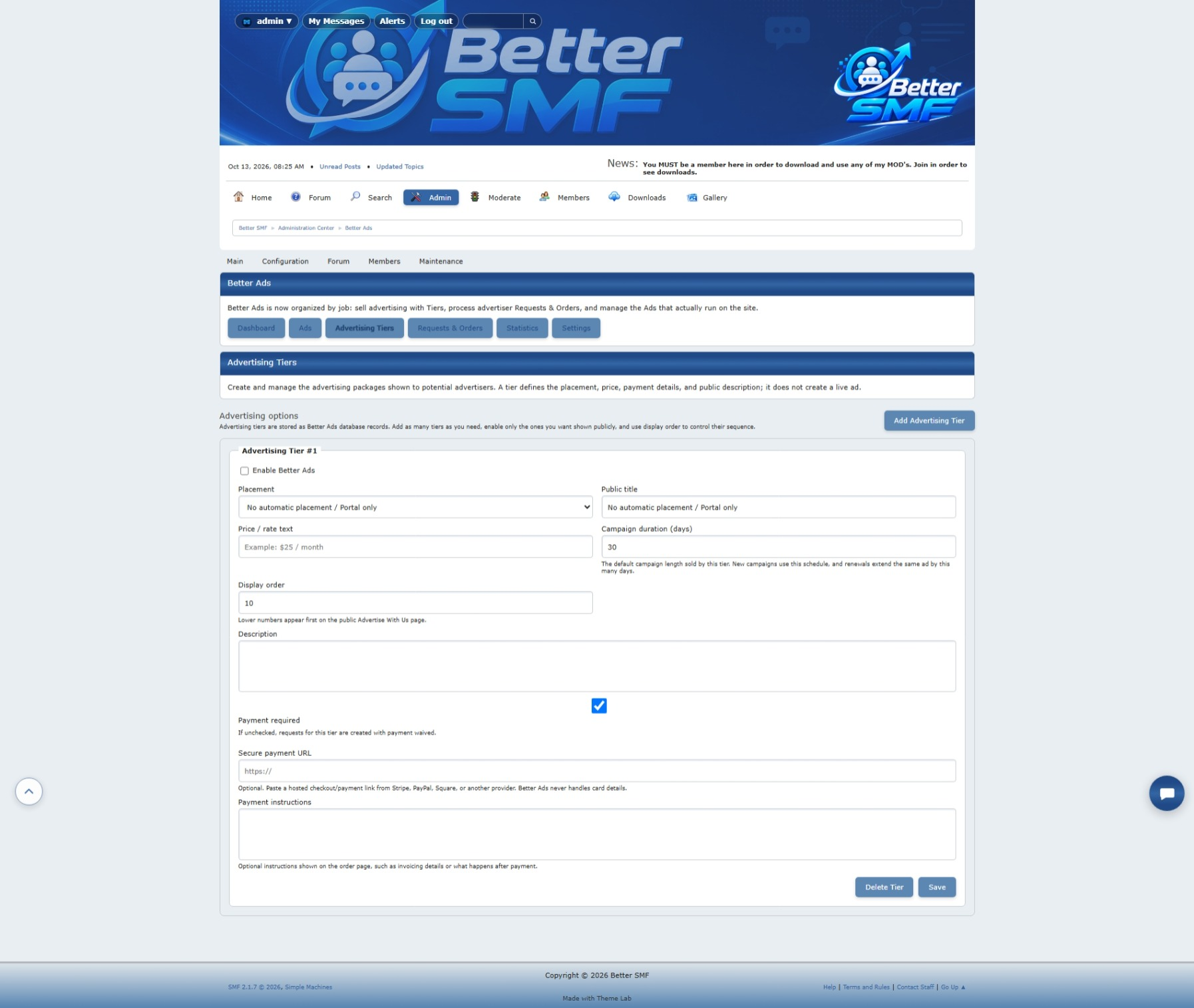
8. Create advertising tiers
If you want advertisers to choose from predefined packages, open the Tiers section.
A tier can represent a specific advertising package.
For example:
Each tier can communicate what the advertiser is purchasing and how the campaign will be handled.
9. Set up the Advertise With Us page
Better Ads can provide a public Advertise With Us page.
This gives potential advertisers a place to review available options and submit a request directly through your site.
Instead of asking people to contact staff manually, the request enters the Better Ads workflow where it can be tracked properly.
This gives the advertising side of your forum a much more professional presentation.
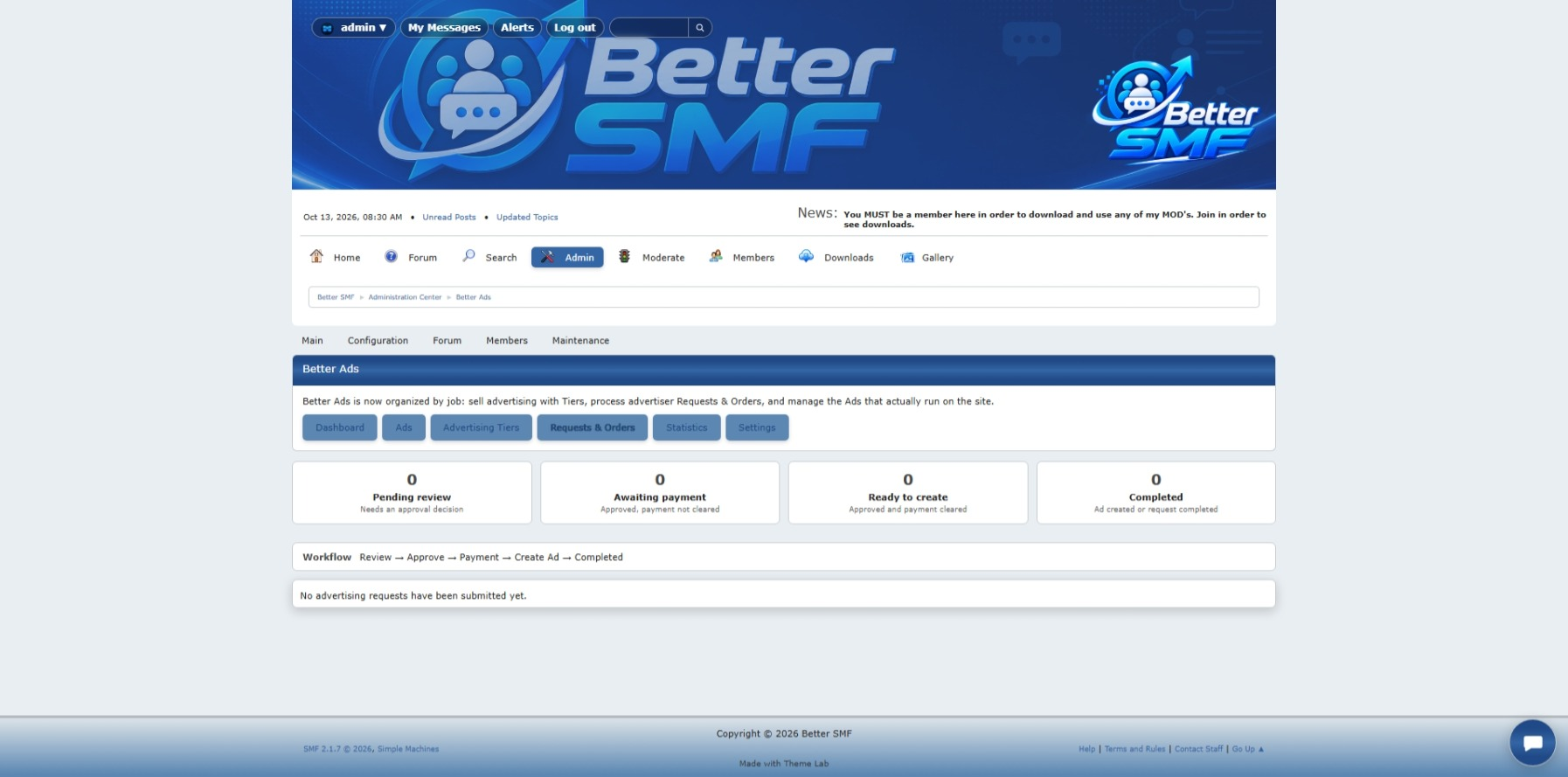
10. Receive an advertiser request
When an advertiser submits a request, it appears in the Requests & Orders area.
Administrators can review the request and decide whether to approve it.
The request can contain information about the advertiser, selected package, campaign details, and other information needed to move forward.
11. Approve the campaign
If the request looks good, approve it.
The campaign can then move into the next stage of the workflow.
Better Ads keeps the status visible so staff can tell the difference between:
That is much easier than tracking the process through email or private messages.
12. Handle payment
Approved campaigns can be moved into a payment stage.
Better Ads can provide the advertiser with a payment link so they know what to do next.
Once payment has been confirmed, the campaign can be marked paid and prepared for activation.
This creates a clear path:
13. Activate the campaign
Once the campaign is approved and paid, activate it.
The ad can then begin displaying according to its selected placement and schedule.
At this point, check the live site and make sure:
14. Use Portal advertising
If Better Portal is installed, ads can be placed directly inside Portal layouts.
This makes it possible to create dedicated sponsored areas on:
Because the campaign is managed through Better Ads, you do not have to manually edit the Portal page every time an advertiser changes.
15. Use Gallery sponsor placements
Better Ads can also integrate with Better Gallery.
Sponsored content can appear among Gallery items in a way that fits the surrounding layout.
This gives advertisers access to a more visual part of the site while keeping the Gallery presentation consistent.
16. Place ads between forum content
Better Ads can also place advertising inside normal forum browsing.
Depending on your configuration, ads can appear:
These placements are useful when you want advertising to appear naturally inside the parts of the forum people use most.
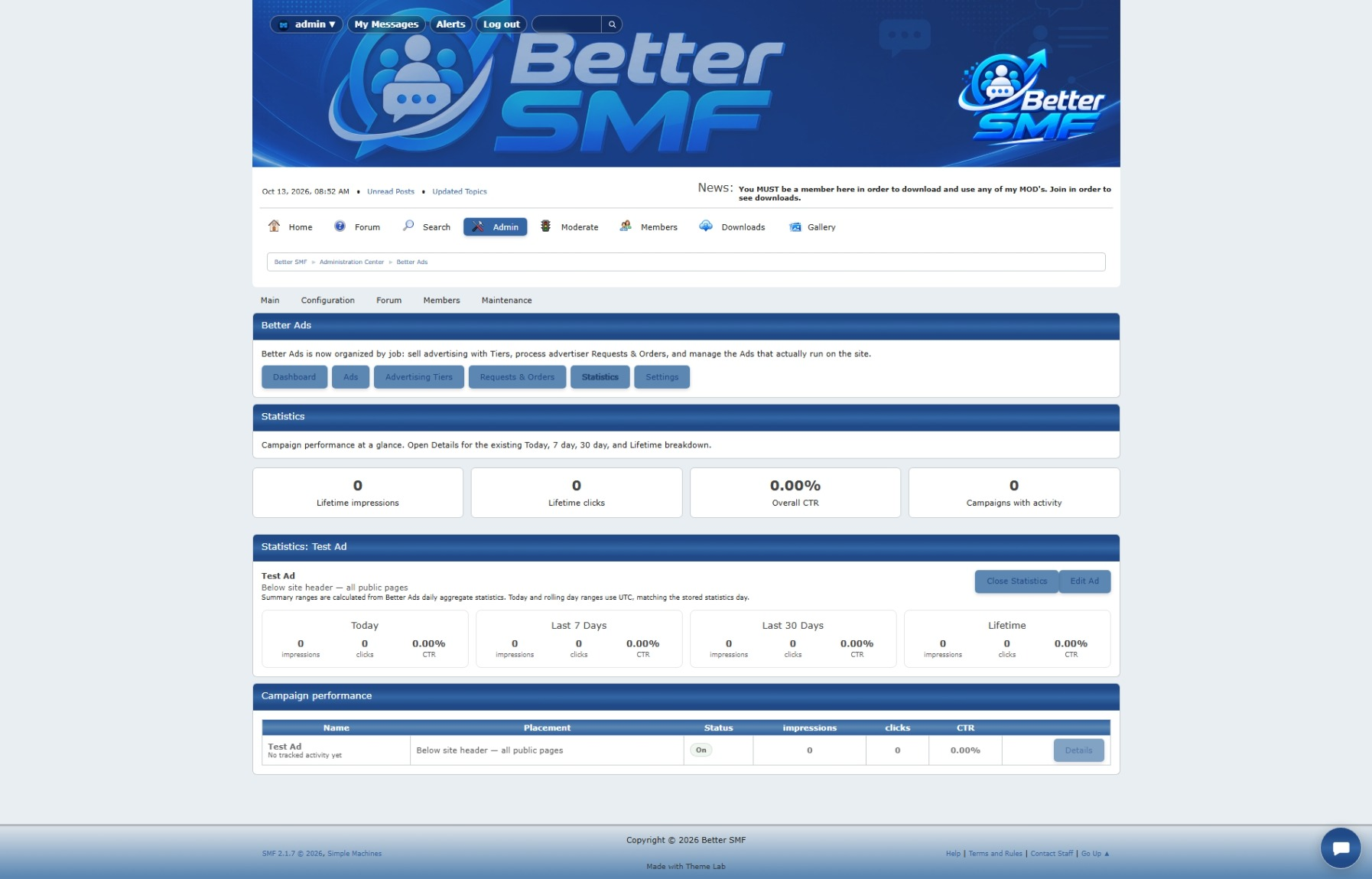
17. Monitor impressions and clicks
Open the Statistics section to review campaign performance.
Better Ads can track activity such as:
This helps administrators see which campaigns are actually being seen and used.
18. Give advertisers access to their statistics
Advertisers can be given a dedicated statistics link so they can review campaign performance without having access to the SMF Admin Center.
This gives them useful transparency while keeping the administrative side of the site secure.
19. Use notifications to keep the workflow moving
Better Ads can notify advertisers as their campaign changes status.
Notifications can be sent for events such as:
Administrators can also receive notifications when new requests need attention.
This reduces the amount of manual follow-up required.
20. Archive and filter older campaigns
Over time, the advertising list can become large.
Use the filtering and archive tools to separate active campaigns from older records.
This makes it easier to focus on:
Keeping older campaigns available is useful for history without letting them clutter the active workflow.
21. Test the full advertiser workflow
Before opening advertising to the public, test the process from beginning to end.
Submit a request as if you were an advertiser.
Then test:
This is the best way to make sure the entire process works before a real advertiser uses it.
Advertising without the administrative mess
Better Ads is designed to keep the entire campaign lifecycle organized inside SMF.
You can define where advertising appears.
Create campaign packages.
Accept advertiser requests.
Approve and track payments.
Activate campaigns.
Monitor performance.
And keep old campaigns organized after they end.
Instead of managing advertising through several disconnected systems, Better Ads keeps the workflow together.
Running advertising on an SMF forum can get messy fast if placements, advertiser requests, payments, campaign dates, and statistics are all handled separately.
Better Ads brings those pieces together inside SMF so you can create campaigns, place ads throughout the site, accept advertiser requests, track payment status, and monitor performance from one system.
This guide walks through the basic setup.
1. Open Better Ads in the Admin Center
After installing Better Ads, open the SMF Admin Center and go to Better Ads.
The administration area is organized into sections for things such as:
- Placements
- Ads
- Tiers
- Requests & Orders
- Statistics
- Settings
Start with the main settings, then build out the advertising structure one piece at a time.
2. Configure the main settings
Review the Better Ads settings before creating campaigns.
Depending on your setup, you can control things such as:
- Whether advertising is enabled
- Public advertising options
- Advertise With Us behavior
- Notification settings
- Payment-related options
- Other system-wide preferences
This is also a good time to decide whether advertising will be managed entirely by staff or whether outside advertisers can submit requests.
3. Set up ad placements
Placements determine where campaigns are allowed to appear.
Better Ads can support advertising in locations such as:
- Header
- Footer
- Board Index
- Topic lists
- Topic view between replies
- Better Portal blocks
- Better Gallery content
Create or enable the placements that make sense for your site.
You do not have to use every location.
A smaller site might only use header and Portal placements, while a larger community may want ads throughout the forum.
4. Create an ad
Open the Ads section and create a new campaign.
Depending on the type of ad, you can configure information such as:
- Ad title
- Destination URL
- Uploaded image
- Custom HTML or JavaScript
- Width and height
- Hover or title text
- Placement
Use a clear campaign name so it remains easy to identify later in the admin area.
5. Choose the placement and alignment
Assign the campaign to the placement where it should appear.
Depending on the placement, Better Ads can also control alignment so the creative fits the surrounding layout properly.
For example, an ad may need to be:
- Left aligned
- Centered
- Right aligned
Check the live page after saving to make sure the ad looks appropriate in the actual forum layout.
6. Add campaign dates
Advertising campaigns often run for a limited period.
Set a start date and end date when appropriate.
Better Ads can then control when the campaign is active automatically.
This means you do not have to remember to manually remove the ad when the campaign ends.
Expired campaigns can stop displaying while still remaining available in the admin area for reference.
7. Understand campaign status
Better Ads can track campaigns through different stages.
Typical statuses can include:
- Pending
- Approved
- Paid
- Active
- Expired
This gives administrators a quick way to understand where every campaign is in the workflow.
8. Create advertising tiers
If you want advertisers to choose from predefined packages, open the Tiers section.
A tier can represent a specific advertising package.
For example:
- Basic banner campaign
- Premium header placement
- Portal advertising
- Sponsored Gallery placement
- Longer campaign duration
Each tier can communicate what the advertiser is purchasing and how the campaign will be handled.
9. Set up the Advertise With Us page
Better Ads can provide a public Advertise With Us page.
This gives potential advertisers a place to review available options and submit a request directly through your site.
Instead of asking people to contact staff manually, the request enters the Better Ads workflow where it can be tracked properly.
This gives the advertising side of your forum a much more professional presentation.
10. Receive an advertiser request
When an advertiser submits a request, it appears in the Requests & Orders area.
Administrators can review the request and decide whether to approve it.
The request can contain information about the advertiser, selected package, campaign details, and other information needed to move forward.
11. Approve the campaign
If the request looks good, approve it.
The campaign can then move into the next stage of the workflow.
Better Ads keeps the status visible so staff can tell the difference between:
- New requests
- Approved campaigns waiting for payment
- Paid campaigns
- Active campaigns
That is much easier than tracking the process through email or private messages.
12. Handle payment
Approved campaigns can be moved into a payment stage.
Better Ads can provide the advertiser with a payment link so they know what to do next.
Once payment has been confirmed, the campaign can be marked paid and prepared for activation.
This creates a clear path:
- Request
- Approval
- Payment
- Activation
13. Activate the campaign
Once the campaign is approved and paid, activate it.
The ad can then begin displaying according to its selected placement and schedule.
At this point, check the live site and make sure:
- The correct ad appears
- The placement is correct
- The alignment looks right
- The destination link works
- The campaign dates are correct
14. Use Portal advertising
If Better Portal is installed, ads can be placed directly inside Portal layouts.
This makes it possible to create dedicated sponsored areas on:
- Homepages
- Product landing pages
- Downloads pages
- Other custom Portal pages
Because the campaign is managed through Better Ads, you do not have to manually edit the Portal page every time an advertiser changes.
15. Use Gallery sponsor placements
Better Ads can also integrate with Better Gallery.
Sponsored content can appear among Gallery items in a way that fits the surrounding layout.
This gives advertisers access to a more visual part of the site while keeping the Gallery presentation consistent.
16. Place ads between forum content
Better Ads can also place advertising inside normal forum browsing.
Depending on your configuration, ads can appear:
- Between boards
- Between topics
- Between replies
These placements are useful when you want advertising to appear naturally inside the parts of the forum people use most.
17. Monitor impressions and clicks
Open the Statistics section to review campaign performance.
Better Ads can track activity such as:
- Impressions
- Clicks
- Campaign performance
This helps administrators see which campaigns are actually being seen and used.
18. Give advertisers access to their statistics
Advertisers can be given a dedicated statistics link so they can review campaign performance without having access to the SMF Admin Center.
This gives them useful transparency while keeping the administrative side of the site secure.
19. Use notifications to keep the workflow moving
Better Ads can notify advertisers as their campaign changes status.
Notifications can be sent for events such as:
- Request received
- Campaign approved
- Payment required
- Payment confirmed
- Campaign activated
- Campaign expired
Administrators can also receive notifications when new requests need attention.
This reduces the amount of manual follow-up required.
20. Archive and filter older campaigns
Over time, the advertising list can become large.
Use the filtering and archive tools to separate active campaigns from older records.
This makes it easier to focus on:
- Pending requests
- Active ads
- Expired campaigns
- Archived records
Keeping older campaigns available is useful for history without letting them clutter the active workflow.
21. Test the full advertiser workflow
Before opening advertising to the public, test the process from beginning to end.
Submit a request as if you were an advertiser.
Then test:
- Request submission
- Admin notification
- Approval
- Payment step
- Activation
- Live placement
- Statistics
- Expiration
This is the best way to make sure the entire process works before a real advertiser uses it.
Advertising without the administrative mess
Better Ads is designed to keep the entire campaign lifecycle organized inside SMF.
You can define where advertising appears.
Create campaign packages.
Accept advertiser requests.
Approve and track payments.
Activate campaigns.
Monitor performance.
And keep old campaigns organized after they end.
Instead of managing advertising through several disconnected systems, Better Ads keeps the workflow together.
Place it. Manage it. Track it.
#6
Better Links / How to Add Link Preview Cards ...
Last post by admin - Oct 13, 2026, 06:40 AMHow to Add Link Preview Cards to SMF 2.1 with Better Links
Better Links gives SMF 2.1 a cleaner way to display links shared in forum posts.
Instead of leaving members with a long URL, Better Links can automatically retrieve information from the destination and create a preview card containing things such as the page title, description, and image.
The system is intentionally simple, but there are a few settings worth understanding — especially cURL support and maintenance of downloaded preview files.
1. Open Better Links in the Admin Center
After installing Better Links, open the SMF Admin Center and go to the Better Links configuration area.
This is where you control how link previews behave.
2. Enable link previews
Make sure Better Links is enabled.
Once active, supported URLs posted by members can be detected automatically and turned into preview cards.
Members do not need to use special BBC.
They can simply paste a normal URL into their message.
For example:
https://example.com/article
Better Links can then attempt to retrieve information from that page and build the preview.
3. Choose where preview cards are displayed
Depending on your Better Links configuration, preview cards can be displayed separately from the main message content.
This can be useful for longer posts because it keeps the written article or discussion clean while placing link previews together underneath the message.
Choose the presentation that works best for your forum.
4. Understand what happens when a preview cannot be created
Not every website allows automated preview requests.
Some websites block external requests, while others do not provide useful metadata.
Better Links is designed so that a failed preview does not destroy the original link.
If a useful card cannot be created, the URL should remain available as a normal clickable link.
That is important because link previews should improve a post — not become a requirement for the link itself to work.
5. Better Links requires PHP cURL
Better Links needs the server to retrieve information from the website being linked.
To do that, PHP needs access to the cURL extension.
Better Links includes a cURL check so administrators can verify whether the server supports it.
If the check reports that cURL is available, you are ready to use link previews.
If it reports that cURL is unavailable, it normally needs to be enabled through your hosting account or by your hosting provider.
6. How to enable cURL in cPanel
The exact hosting interface varies, but many shared hosts use cPanel.
If your host allows PHP extensions to be managed directly, look for something similar to:
Find:
curl
and make sure it is enabled.
Save the PHP configuration if your host requires it.
Then return to Better Links and run the cURL check again.
Important: Not every cPanel installation gives customers permission to enable PHP extensions themselves.
If you do not see an extension manager, do not start changing unrelated PHP settings.
7. Ask your hosting provider to enable cURL
If you cannot enable it yourself, contact your hosting company.
You can simply tell them:
That is usually all they need.
You may also want to include the domain name and current PHP version if you know them.
For example:
Once the host confirms that it has been enabled, return to Better Links and run the cURL test again.
8. Test a normal link
Once Better Links is configured and cURL is working, create a test forum post containing a normal URL.
Use a page that provides a title, description, and image if possible.
After posting, Better Links should build a preview card automatically.
A successful preview may contain:
9. Inline images are left alone
Better Links understands that not every URL in a message is supposed to become a preview.
For example:

is an intentional inline image.
Better Links leaves URLs used inside SMF image BBC alone instead of trying to turn the image source into a preview card.
That means tutorials and screenshot-heavy articles can use inline images normally while regular links continue to receive previews.
10. What are orphaned files?
When Better Links retrieves preview information, it may store supporting files used by previews.
Over time, a forum post may be deleted, edited, or changed so that one of those stored files is no longer being used.
A file that is still stored by Better Links but is no longer associated with active preview content is considered an orphaned file.
Leaving a few orphaned files behind is not usually a serious problem, but over a long period they can consume unnecessary disk space.
That is why Better Links includes maintenance tools to help identify them.
11. Find orphaned Better Links files
Open the Better Links maintenance or cleanup area and run the orphaned-file scan.
Better Links will compare the files it has stored against the preview information still being used by the forum.
Anything that is no longer referenced can be identified as an orphan.
Running the scan first lets you see what Better Links considers unused before deleting anything.
12. Delete orphaned files
Once the scan has finished, use the cleanup option to remove files that are confirmed to be orphaned.
This removes unused Better Links files without affecting preview data that is still actively referenced.
It is a good maintenance task to run occasionally, especially on a busy forum where posts and links are edited or deleted frequently.
There is usually no reason to run it constantly.
Periodic cleanup is enough.
13. Test Better Links as a normal member
Before considering the setup finished, log in with a regular member account and make a few test posts.
Try:
Confirm that normal links stay clickable, previews appear when possible, and intentional BBC formatting is left alone.
14. If previews suddenly stop working
If Better Links previously worked and previews suddenly stop appearing, a few things are worth checking first:
If one website fails but others work, the problem is probably the destination website rather than Better Links.
If every website fails, checking cURL and the server configuration is a good place to start.
Simple by design
Better Links does not require members to learn a new posting system.
Paste a normal link.
If Better Links can build a useful preview, it does.
If it cannot, the link remains a link.
Administrators get the settings and maintenance tools needed to keep the system working without making normal forum posting more complicated.
Better Links gives SMF 2.1 a cleaner way to display links shared in forum posts.
Instead of leaving members with a long URL, Better Links can automatically retrieve information from the destination and create a preview card containing things such as the page title, description, and image.
The system is intentionally simple, but there are a few settings worth understanding — especially cURL support and maintenance of downloaded preview files.
1. Open Better Links in the Admin Center
After installing Better Links, open the SMF Admin Center and go to the Better Links configuration area.
This is where you control how link previews behave.
2. Enable link previews
Make sure Better Links is enabled.
Once active, supported URLs posted by members can be detected automatically and turned into preview cards.
Members do not need to use special BBC.
They can simply paste a normal URL into their message.
For example:
https://example.com/article
Better Links can then attempt to retrieve information from that page and build the preview.
3. Choose where preview cards are displayed
Depending on your Better Links configuration, preview cards can be displayed separately from the main message content.
This can be useful for longer posts because it keeps the written article or discussion clean while placing link previews together underneath the message.
Choose the presentation that works best for your forum.
4. Understand what happens when a preview cannot be created
Not every website allows automated preview requests.
Some websites block external requests, while others do not provide useful metadata.
Better Links is designed so that a failed preview does not destroy the original link.
If a useful card cannot be created, the URL should remain available as a normal clickable link.
That is important because link previews should improve a post — not become a requirement for the link itself to work.
5. Better Links requires PHP cURL
Better Links needs the server to retrieve information from the website being linked.
To do that, PHP needs access to the cURL extension.
Better Links includes a cURL check so administrators can verify whether the server supports it.
If the check reports that cURL is available, you are ready to use link previews.
If it reports that cURL is unavailable, it normally needs to be enabled through your hosting account or by your hosting provider.
6. How to enable cURL in cPanel
The exact hosting interface varies, but many shared hosts use cPanel.
If your host allows PHP extensions to be managed directly, look for something similar to:
- cPanel
- Select PHP Version or PHP Selector
- Extensions
Find:
curl
and make sure it is enabled.
Save the PHP configuration if your host requires it.
Then return to Better Links and run the cURL check again.
Important: Not every cPanel installation gives customers permission to enable PHP extensions themselves.
If you do not see an extension manager, do not start changing unrelated PHP settings.
7. Ask your hosting provider to enable cURL
If you cannot enable it yourself, contact your hosting company.
You can simply tell them:
QuotePlease enable the PHP cURL extension for the PHP version used by my website.
That is usually all they need.
You may also want to include the domain name and current PHP version if you know them.
For example:
QuoteCould you please enable the PHP cURL extension for my SMF installation on https://www.example.com? The site is currently using PHP 8.x.
Once the host confirms that it has been enabled, return to Better Links and run the cURL test again.
8. Test a normal link
Once Better Links is configured and cURL is working, create a test forum post containing a normal URL.
Use a page that provides a title, description, and image if possible.
After posting, Better Links should build a preview card automatically.
A successful preview may contain:
- Page title
- Description
- Preview image
- Destination information
9. Inline images are left alone
Better Links understands that not every URL in a message is supposed to become a preview.
For example:
is an intentional inline image.
Better Links leaves URLs used inside SMF image BBC alone instead of trying to turn the image source into a preview card.
That means tutorials and screenshot-heavy articles can use inline images normally while regular links continue to receive previews.
10. What are orphaned files?
When Better Links retrieves preview information, it may store supporting files used by previews.
Over time, a forum post may be deleted, edited, or changed so that one of those stored files is no longer being used.
A file that is still stored by Better Links but is no longer associated with active preview content is considered an orphaned file.
Leaving a few orphaned files behind is not usually a serious problem, but over a long period they can consume unnecessary disk space.
That is why Better Links includes maintenance tools to help identify them.
11. Find orphaned Better Links files
Open the Better Links maintenance or cleanup area and run the orphaned-file scan.
Better Links will compare the files it has stored against the preview information still being used by the forum.
Anything that is no longer referenced can be identified as an orphan.
Running the scan first lets you see what Better Links considers unused before deleting anything.
12. Delete orphaned files
Once the scan has finished, use the cleanup option to remove files that are confirmed to be orphaned.
This removes unused Better Links files without affecting preview data that is still actively referenced.
It is a good maintenance task to run occasionally, especially on a busy forum where posts and links are edited or deleted frequently.
There is usually no reason to run it constantly.
Periodic cleanup is enough.
13. Test Better Links as a normal member
Before considering the setup finished, log in with a regular member account and make a few test posts.
Try:
- A normal URL that produces a preview
- A URL from a site that does not provide a preview
- A post containing an inline image
- A longer article containing both images and normal links
Confirm that normal links stay clickable, previews appear when possible, and intentional BBC formatting is left alone.
14. If previews suddenly stop working
If Better Links previously worked and previews suddenly stop appearing, a few things are worth checking first:
- Run the Better Links cURL check
- Confirm your hosting provider has not changed the PHP version
- Verify the PHP cURL extension is still enabled
- Try more than one external website
- Remember that individual websites may block preview requests
If one website fails but others work, the problem is probably the destination website rather than Better Links.
If every website fails, checking cURL and the server configuration is a good place to start.
Simple by design
Better Links does not require members to learn a new posting system.
Paste a normal link.
If Better Links can build a useful preview, it does.
If it cannot, the link remains a link.
Administrators get the settings and maintenance tools needed to keep the system working without making normal forum posting more complicated.
Paste the link. Better Links does the rest.
#7
Better Reactions / How to Add Reactions and Likes...
Last post by admin - Oct 12, 2026, 12:23 PMHow to Add Reactions and Likes to SMF 2.1
SMF already gives members a familiar way to interact with posts, but some communities need more than a single Like button.
Better Reactions & Likes expands that idea into a flexible reaction system with custom reactions, categories, presets, topic states, staff-only options, permissions, and integration with other Better SMF MODs.
This guide walks through the basic setup.
1. Open Better Reactions & Likes in the Admin Center
After installing Better Reactions & Likes, open the SMF Admin Center and go to the Better Reactions & Likes section.
This is where you manage the reaction system and decide how it should work on your forum.
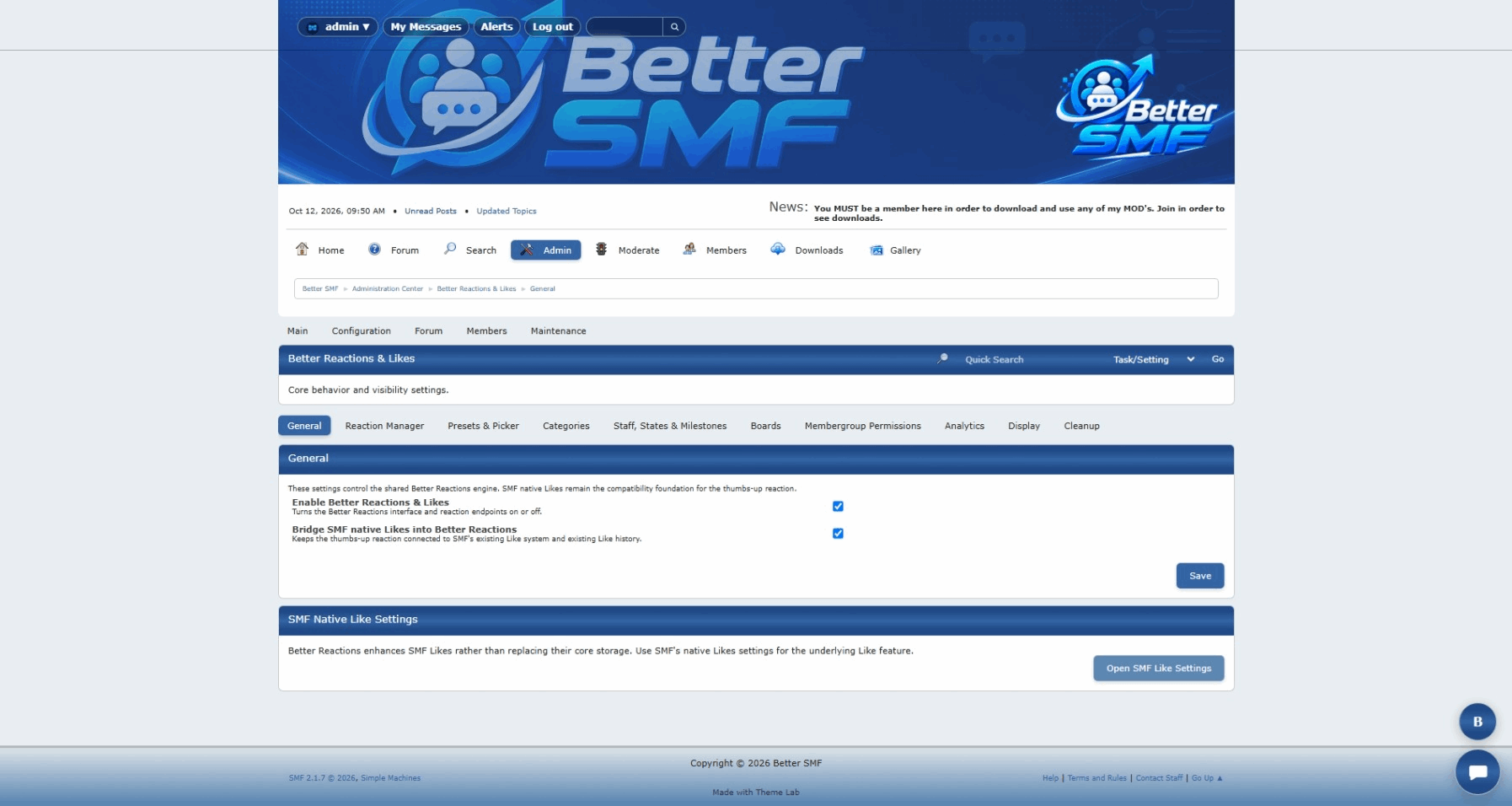
2. Review the main settings
Start by reviewing the main configuration options.
Depending on your setup, you can control things such as:
A good first goal is to decide whether you want a simple Like-plus-reactions setup or a larger reaction system with categories and special-use reactions.
3. Keep the normal Like action
Better Reactions & Likes keeps the familiar Like behavior as the primary action.
That means members do not have to learn a completely different system.
If they just want to Like a post, they can.
Additional reactions stay available when someone wants a more specific response.
This keeps the interface familiar while giving the forum more flexibility.
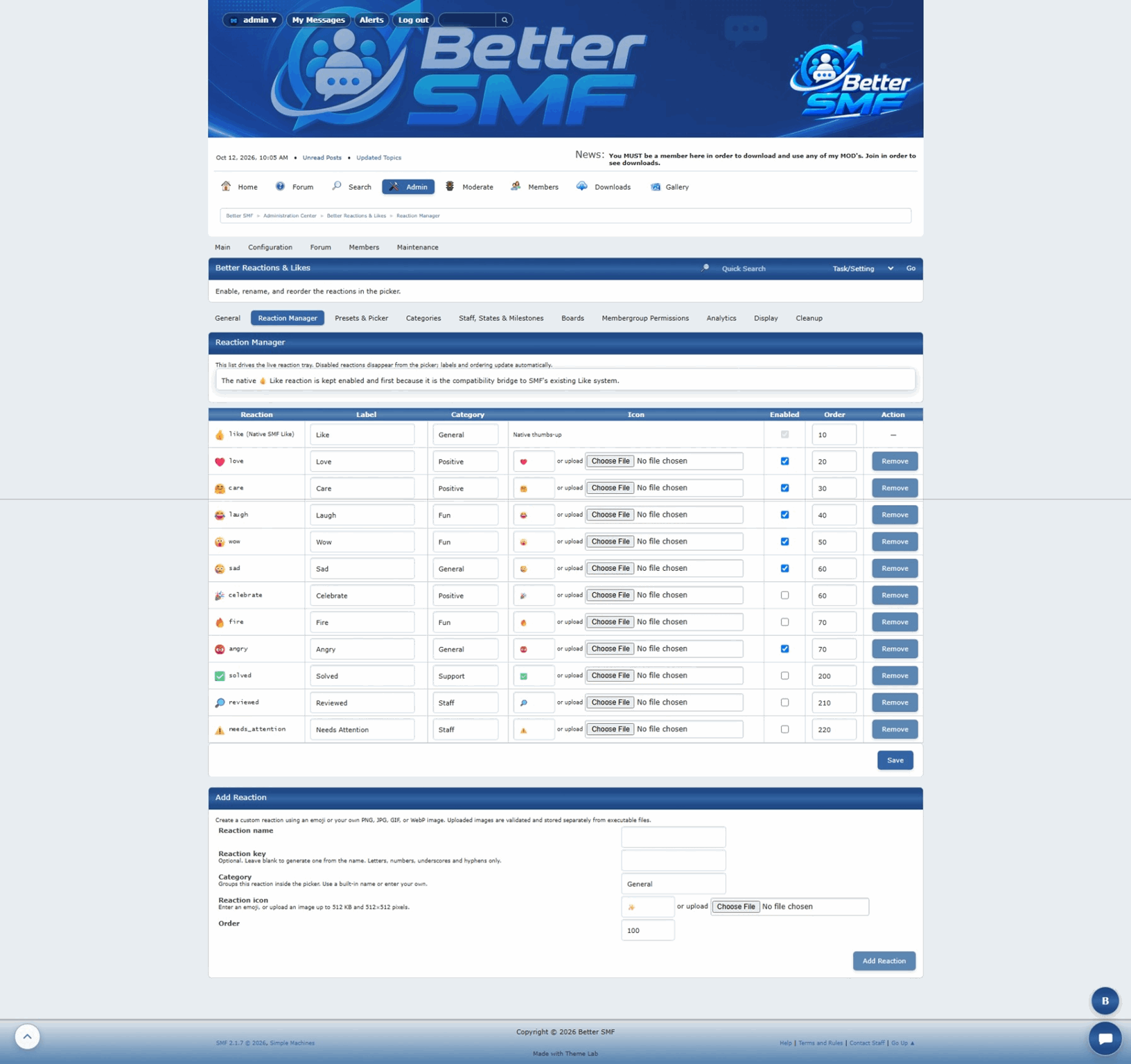
4. Create custom reactions
Open the reaction manager and create the reactions you want your community to use.
Examples could include:
You are not locked into a predefined set.
Choose reactions that make sense for the kind of community you run.
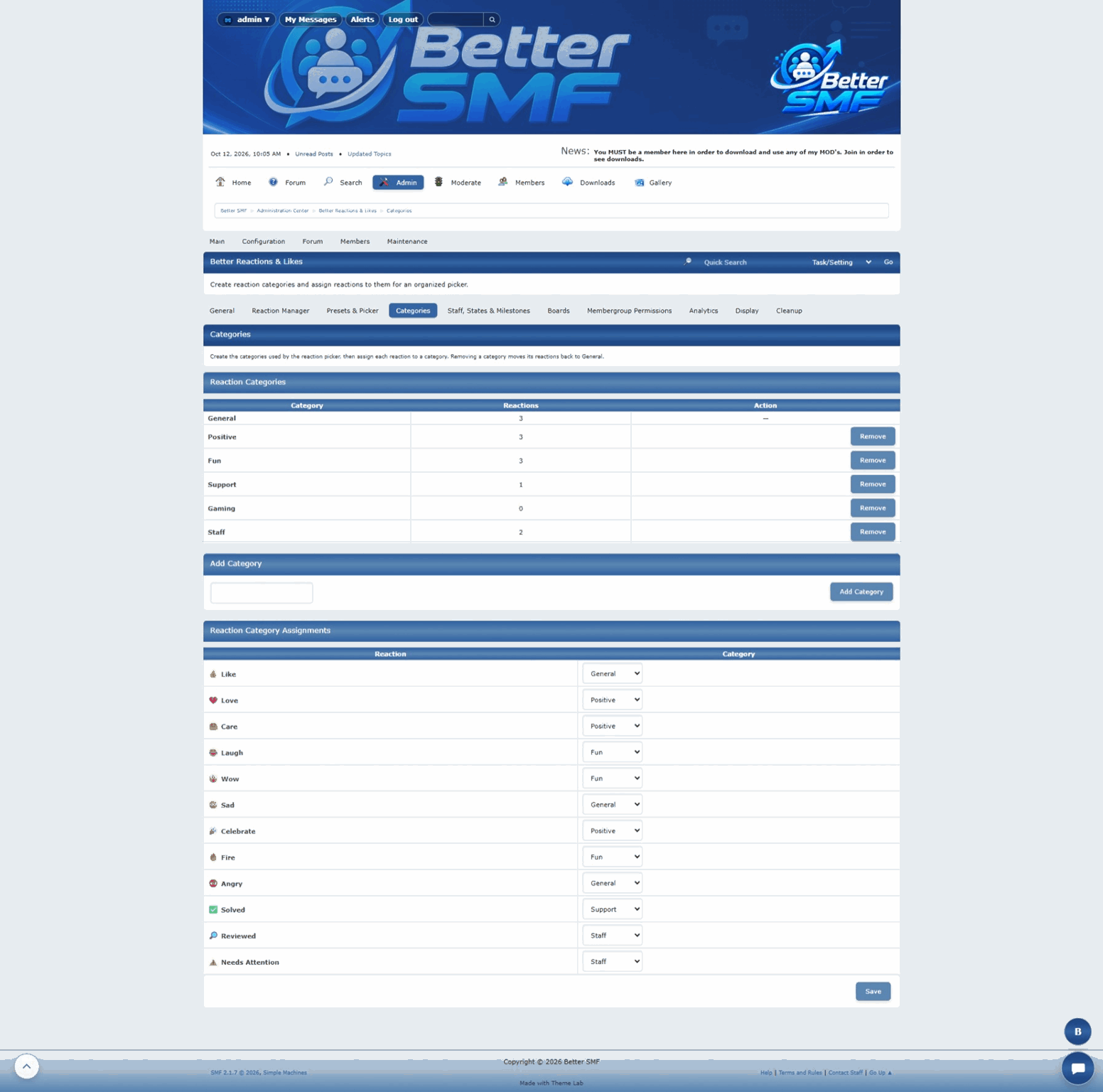
5. Organize reactions into categories
If you are using more than a small number of reactions, categories can help keep the system organized.
For example, you might separate:
Categories are especially useful when the reaction library starts getting larger.
6. Use reaction presets
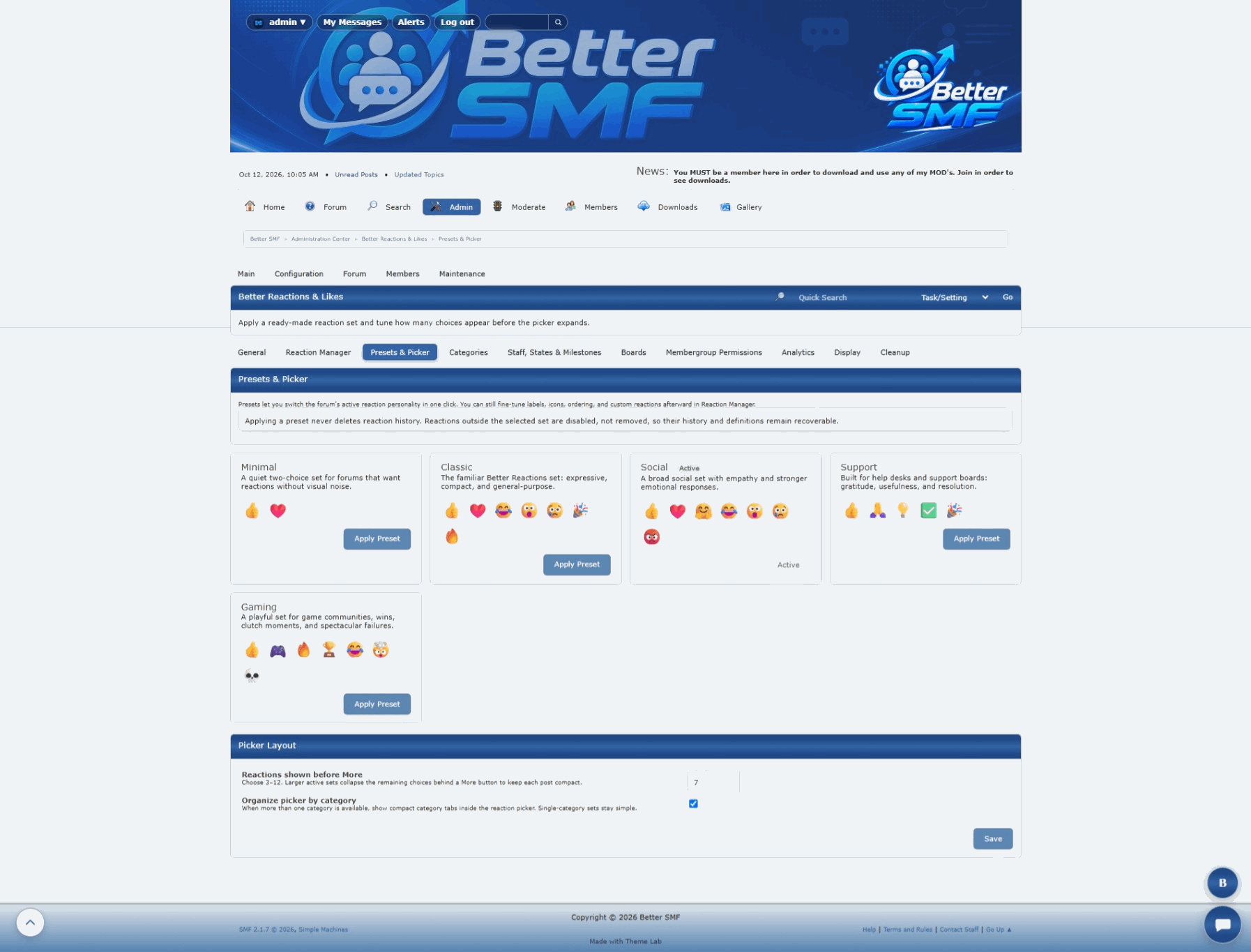
Presets provide a quicker way to build a reaction setup without recreating everything manually.
You can use a preset as a starting point and then adjust it to fit your community.
This is useful when you want a consistent reaction set but still want the freedom to customize it later.
7. Configure permissions
Not every member group has to use reactions the same way.
Better Reactions & Likes can respect forum permissions and group access.
You can decide which groups are allowed to react and which features should remain restricted.
For example:
Testing permissions with a regular member account is important because administrators often have access to everything.
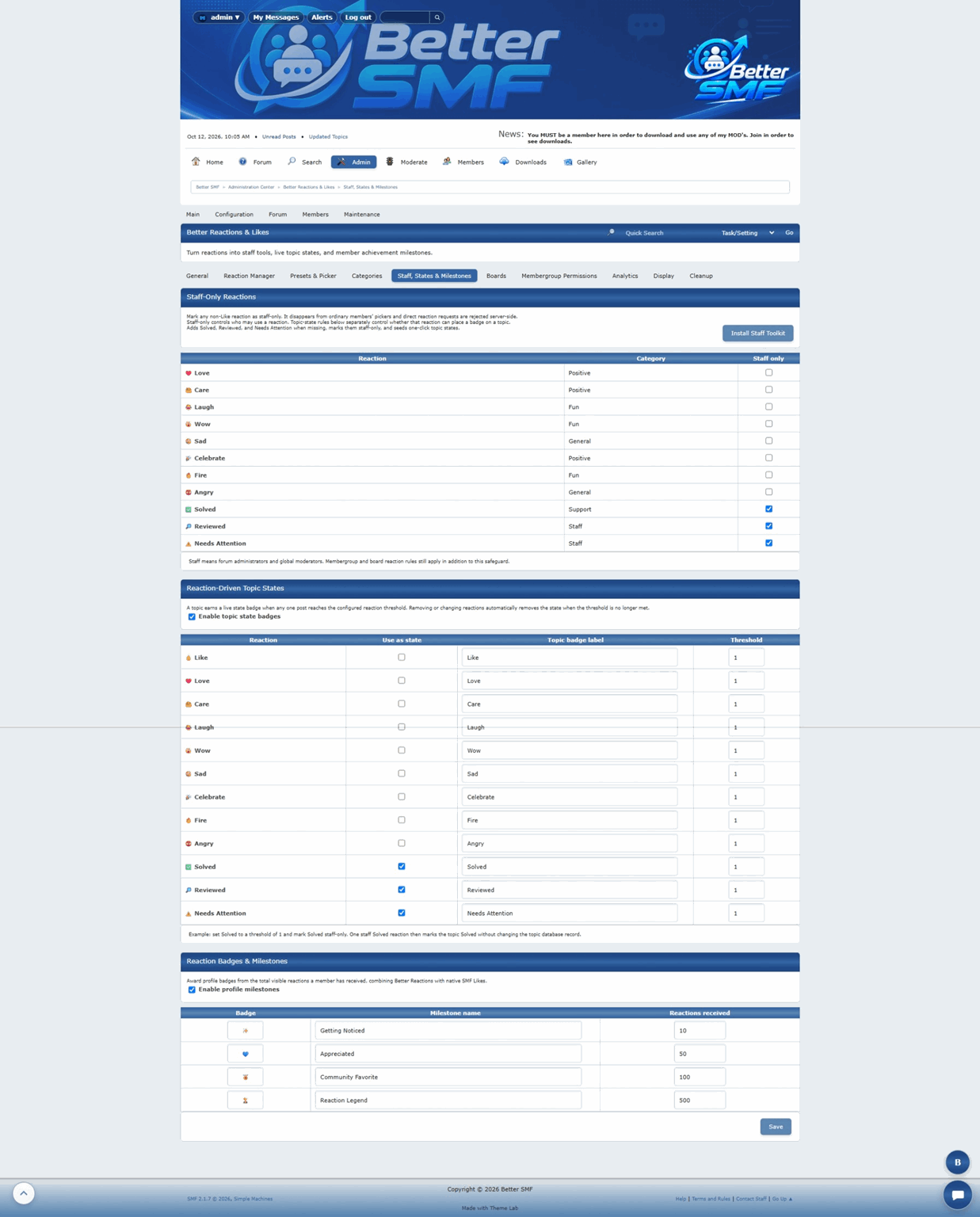
8. Set up Staff Only Reactions
Some reactions are useful for internal workflows but should not be available to everyone.
Staff Only Reactions can be used for things such as:
This gives staff a quick way to communicate status without adding unnecessary public clutter.
9. Configure Topic States
Better Reactions & Likes can also be used for more than emotional reactions.
Topic States provide a way to show the current status of a discussion.
Examples could include:
This is especially useful for:
10. Test who-reacted information
Better Reactions & Likes can show more than just a number.
Members can see who reacted through a tooltip or popup without filling the page with a long list of usernames.
That gives useful context while keeping the interface clean.
Even though the front-end behavior is familiar, it is worth testing this as a normal member to make sure permissions and display behavior are correct.
11. Test Better Gallery integration
If Better Gallery is installed, Better Reactions & Likes can extend beyond forum posts.
Gallery images and albums can use the same reaction system.
This keeps interaction consistent across the site instead of creating a separate Like system for Gallery content.
12. Test Better Chat integration
If Better Chat is installed, reactions can also work inside chat conversations.
Members can react to messages without interrupting the conversation with another reply.
That makes the reaction system feel like one shared Better SMF feature instead of several unrelated implementations.
13. Use reactions in Better Portal
Better Portal can surface reaction-based content too.
For example, reaction data can be used in blocks that highlight popular or most-liked forum content.
That gives Better Reactions & Likes a role beyond individual posts and helps bring high-engagement content forward.
14. Test as a regular member
Before considering the setup complete, log in with a normal member account and check the reaction system from the user side.
Make sure:
This is also the best way to catch permission problems that may not appear while testing as an administrator.
15. Keep the reaction set useful
More reactions are not always better.
A good reaction system should make it easier for members to respond, not harder.
Try to keep the reaction set focused on responses your community will actually use.
If the picker becomes too crowded, use categories or remove reactions that are rarely useful.
More interaction without more clutter
Better Reactions & Likes is designed to keep the familiar Like experience while giving administrators much more control.
Members can keep using a simple Like when that is enough.
Communities that want more can add custom reactions, staff-only options, topic states, and integrations across the site.
The important part is that the extra power stays manageable.
SMF already gives members a familiar way to interact with posts, but some communities need more than a single Like button.
Better Reactions & Likes expands that idea into a flexible reaction system with custom reactions, categories, presets, topic states, staff-only options, permissions, and integration with other Better SMF MODs.
This guide walks through the basic setup.
1. Open Better Reactions & Likes in the Admin Center
After installing Better Reactions & Likes, open the SMF Admin Center and go to the Better Reactions & Likes section.
This is where you manage the reaction system and decide how it should work on your forum.
2. Review the main settings
Start by reviewing the main configuration options.
Depending on your setup, you can control things such as:
- Whether reactions are enabled
- How the Like action behaves
- Which additional reactions are available
- How reaction information is displayed
- Who is allowed to react
- Other system behavior
A good first goal is to decide whether you want a simple Like-plus-reactions setup or a larger reaction system with categories and special-use reactions.
3. Keep the normal Like action
Better Reactions & Likes keeps the familiar Like behavior as the primary action.
That means members do not have to learn a completely different system.
If they just want to Like a post, they can.
Additional reactions stay available when someone wants a more specific response.
This keeps the interface familiar while giving the forum more flexibility.
4. Create custom reactions
Open the reaction manager and create the reactions you want your community to use.
Examples could include:
- Love
- Helpful
- Funny
- Thanks
- Interesting
- Agree
- Celebrate
You are not locked into a predefined set.
Choose reactions that make sense for the kind of community you run.
5. Organize reactions into categories
If you are using more than a small number of reactions, categories can help keep the system organized.
For example, you might separate:
- General reactions
- Positive feedback
- Support-related reactions
- Staff reactions
Categories are especially useful when the reaction library starts getting larger.
6. Use reaction presets
Presets provide a quicker way to build a reaction setup without recreating everything manually.
You can use a preset as a starting point and then adjust it to fit your community.
This is useful when you want a consistent reaction set but still want the freedom to customize it later.
7. Configure permissions
Not every member group has to use reactions the same way.
Better Reactions & Likes can respect forum permissions and group access.
You can decide which groups are allowed to react and which features should remain restricted.
For example:
- Normal members can use public reactions
- Guests cannot react
- Staff can use additional moderation-related reactions
Testing permissions with a regular member account is important because administrators often have access to everything.
8. Set up Staff Only Reactions
Some reactions are useful for internal workflows but should not be available to everyone.
Staff Only Reactions can be used for things such as:
- Reviewed
- Approved
- Needs Attention
- Moderator Checked
This gives staff a quick way to communicate status without adding unnecessary public clutter.
9. Configure Topic States
Better Reactions & Likes can also be used for more than emotional reactions.
Topic States provide a way to show the current status of a discussion.
Examples could include:
- Solved
- Completed
- Approved
- Reviewed
- Needs Attention
This is especially useful for:
- Support forums
- Development boards
- Project tracking
- Request systems
10. Test who-reacted information
Better Reactions & Likes can show more than just a number.
Members can see who reacted through a tooltip or popup without filling the page with a long list of usernames.
That gives useful context while keeping the interface clean.
Even though the front-end behavior is familiar, it is worth testing this as a normal member to make sure permissions and display behavior are correct.
11. Test Better Gallery integration
If Better Gallery is installed, Better Reactions & Likes can extend beyond forum posts.
Gallery images and albums can use the same reaction system.
This keeps interaction consistent across the site instead of creating a separate Like system for Gallery content.
12. Test Better Chat integration
If Better Chat is installed, reactions can also work inside chat conversations.
Members can react to messages without interrupting the conversation with another reply.
That makes the reaction system feel like one shared Better SMF feature instead of several unrelated implementations.
13. Use reactions in Better Portal
Better Portal can surface reaction-based content too.
For example, reaction data can be used in blocks that highlight popular or most-liked forum content.
That gives Better Reactions & Likes a role beyond individual posts and helps bring high-engagement content forward.
14. Test as a regular member
Before considering the setup complete, log in with a normal member account and check the reaction system from the user side.
Make sure:
- The Like button appears correctly
- Allowed reactions are available
- Restricted reactions stay hidden
- Reaction counts update correctly
- Who-reacted information works
- Permissions behave as expected
This is also the best way to catch permission problems that may not appear while testing as an administrator.
15. Keep the reaction set useful
More reactions are not always better.
A good reaction system should make it easier for members to respond, not harder.
Try to keep the reaction set focused on responses your community will actually use.
If the picker becomes too crowded, use categories or remove reactions that are rarely useful.
More interaction without more clutter
Better Reactions & Likes is designed to keep the familiar Like experience while giving administrators much more control.
Members can keep using a simple Like when that is enough.
Communities that want more can add custom reactions, staff-only options, topic states, and integrations across the site.
The important part is that the extra power stays manageable.
Like it. React to it. Keep the conversation moving.
Want to see everything Better Reactions & Likes can do?
Learn more about Better Reactions & Likes for SMF 2.1
Learn more about Better Reactions & Likes for SMF 2.1
#8
Better Downloads / How to Add a Downloads Manager...
Last post by admin - Oct 12, 2026, 08:02 AMHow to Add a Downloads Manager to SMF 2.1 with Better Downloads
SMF handles forum discussions extremely well, but when your community starts sharing software, MODs, themes, documents, or other files, forum attachments can become difficult to organize.
Better Downloads adds a dedicated downloads system to SMF 2.1 so files can be categorized, presented properly, tracked, and connected to the rest of your site.
This guide walks through the basic setup.
1. Open Better Downloads in the Admin Center
After installing Better Downloads, open the SMF Admin Center and go to Better Downloads.
This is where you manage categories, downloads, settings, and submission permissions.
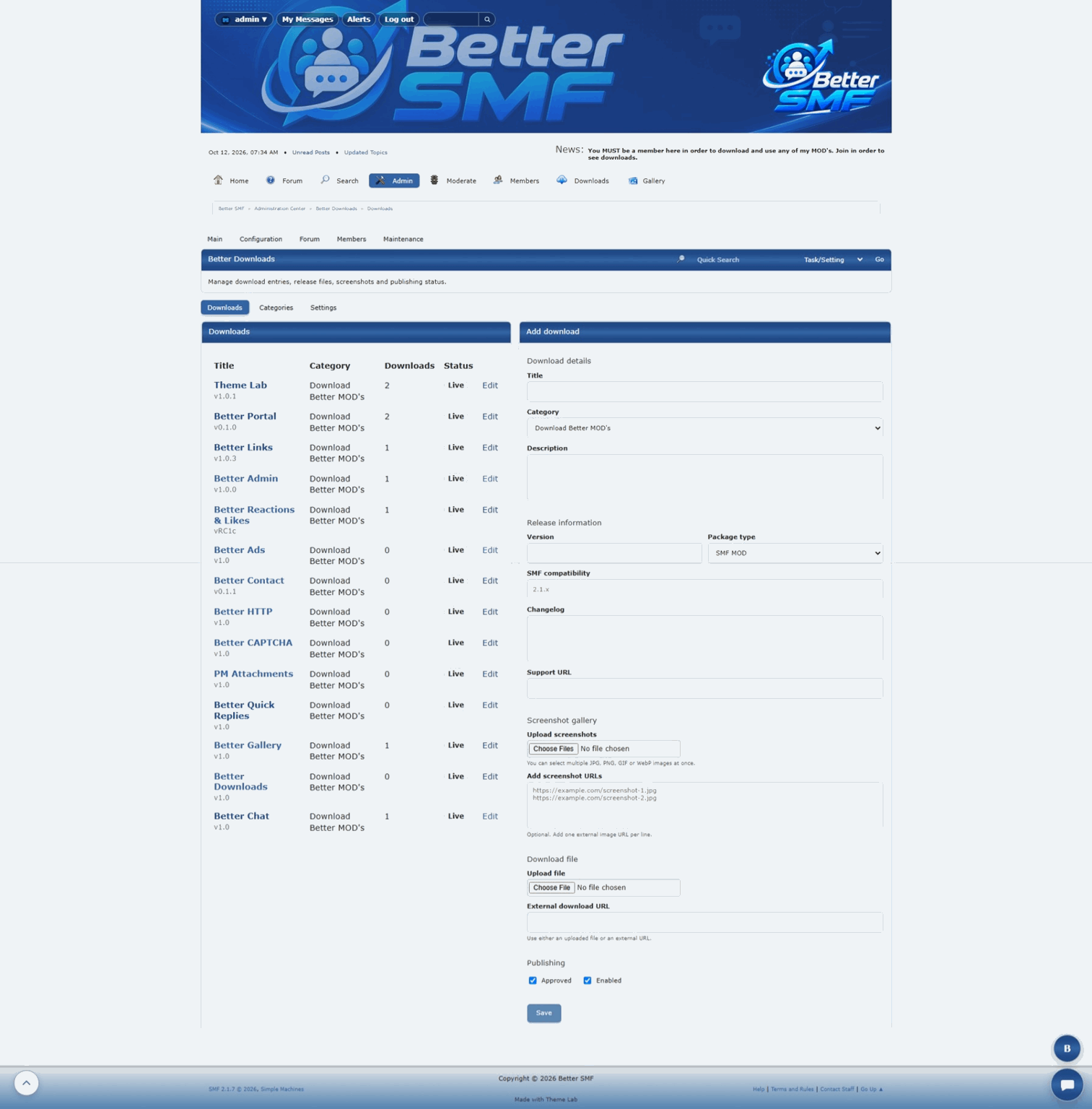
2. Configure the main settings
Start with the main Better Downloads settings.
Depending on how you want the system to work, you can configure options such as:
A good first step is deciding whether the library will be staff-managed or open to member submissions.
3. Decide who can submit downloads
Better Downloads can be used in different ways.
Some communities may want members to contribute their own files.
Others may want the Downloads area to contain only official releases managed by staff.
Better Downloads lets you control which member groups are allowed to submit content.
That makes it useful for:
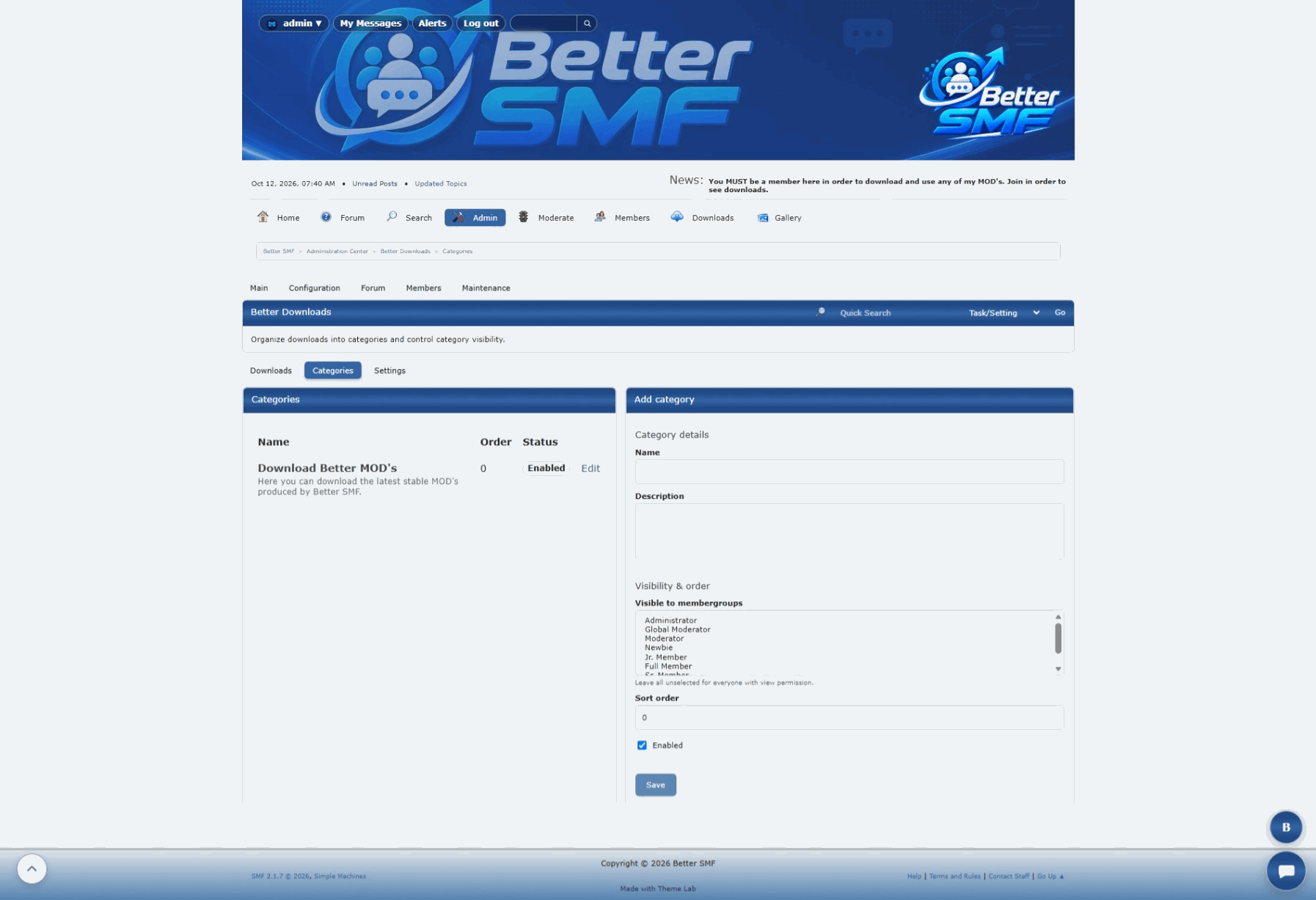
4. Create download categories
Categories keep the library organized.
Before adding a large number of files, create a clear category structure.
For example:
A simple structure makes the library easier to browse and easier to maintain later.
5. Add your first download
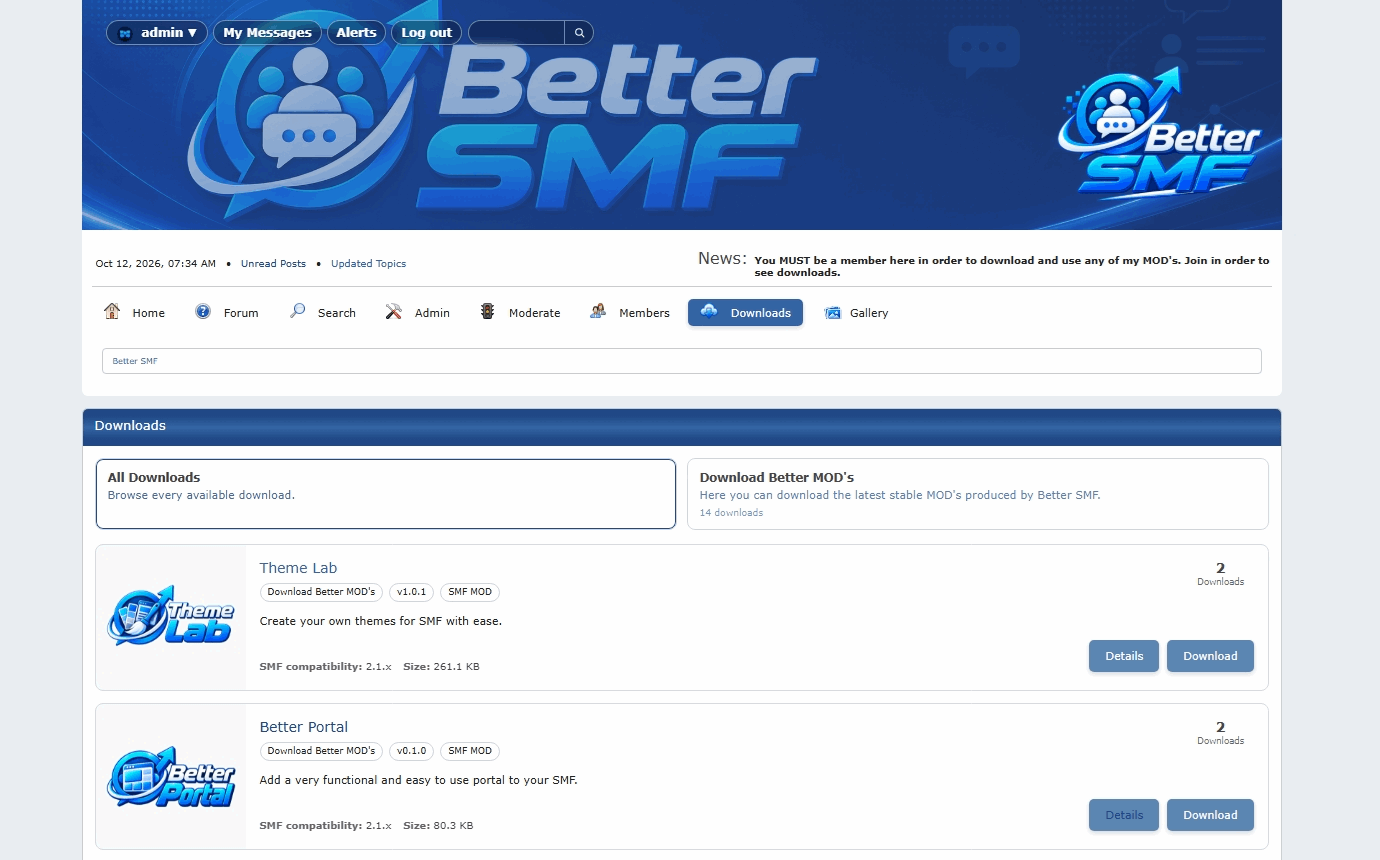
Once your categories are ready, create a new download.
Enter the basic information visitors will need.
Depending on the item, that can include:
A dedicated download page gives the file much more context than simply attaching it to a forum post.
6. Add screenshots
Better Downloads can display multiple screenshots for a download.
This is especially useful for:
Screenshots help visitors understand what they are downloading before they commit to the file.
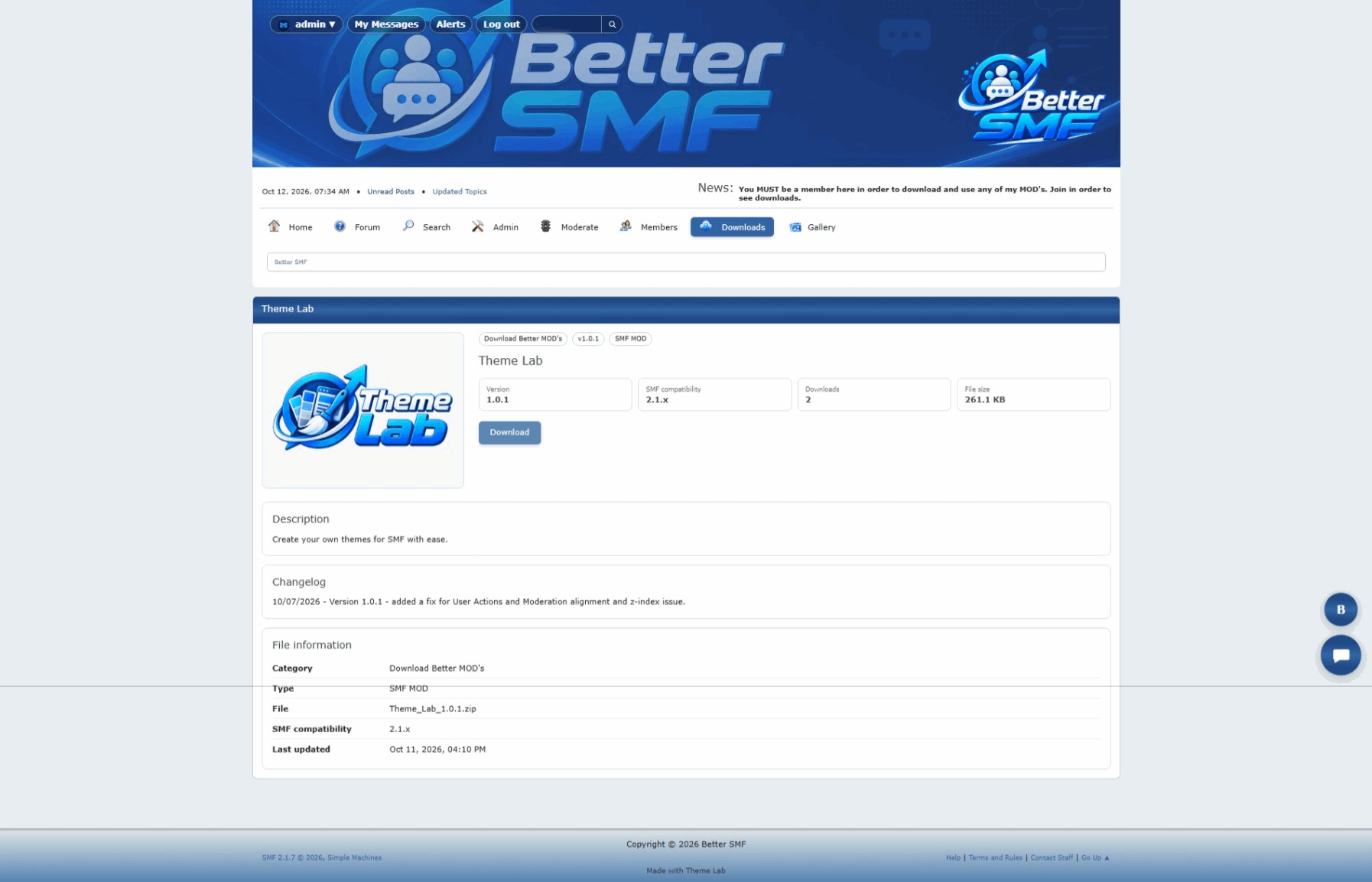
7. Review the public download page
After creating the item, open it from the public Downloads area.
This is the page visitors will use to learn about and download the file.
Check things such as:
8. Test the category browser
Return to the main Downloads area and browse the categories the way a visitor would.
Make sure the structure is easy to understand and that files appear where you expect them.
A good download library should let someone find what they need without already knowing the exact file name.
9. Use download statistics
Better Downloads can track download activity.
This helps show which files are receiving attention and makes it possible to surface popular content elsewhere on the site.
Download statistics can also be useful when deciding:
10. Add Better Downloads to Better Portal
If Better Portal is installed, download content can be displayed directly inside Portal pages.
Available blocks can include things such as:
This makes it easy to build a complete Downloads landing page without manually copying download information into Custom Text blocks.
11. Use the Interactive Downloads Browser
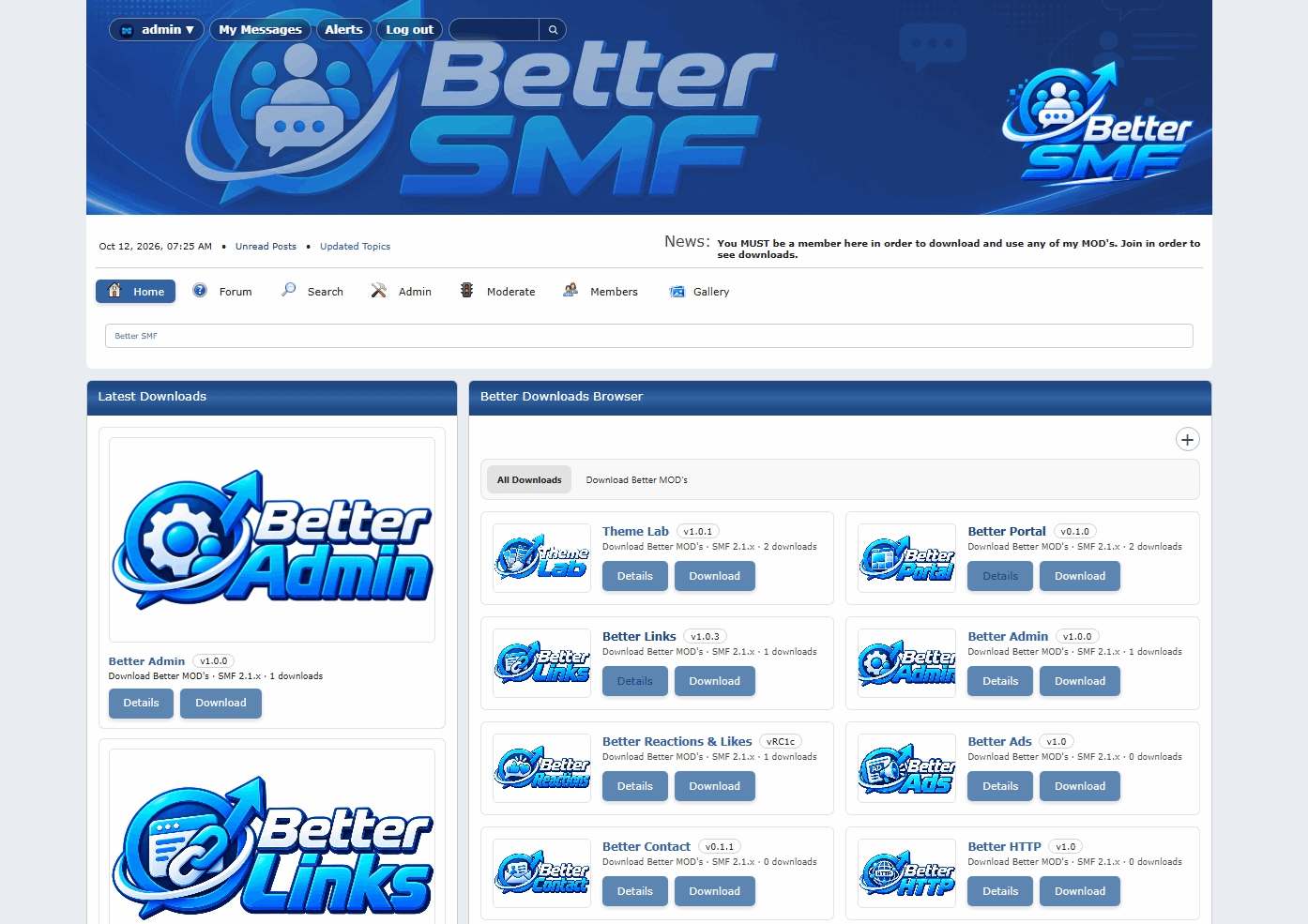
One of the most useful Better Portal integrations is the Interactive Downloads Browser.
It allows visitors to browse the Downloads system directly inside a Portal page.
They can move through the workflow without leaving the page:
Where submissions are enabled, permitted members can also reach the Add Download workflow from the same interface.
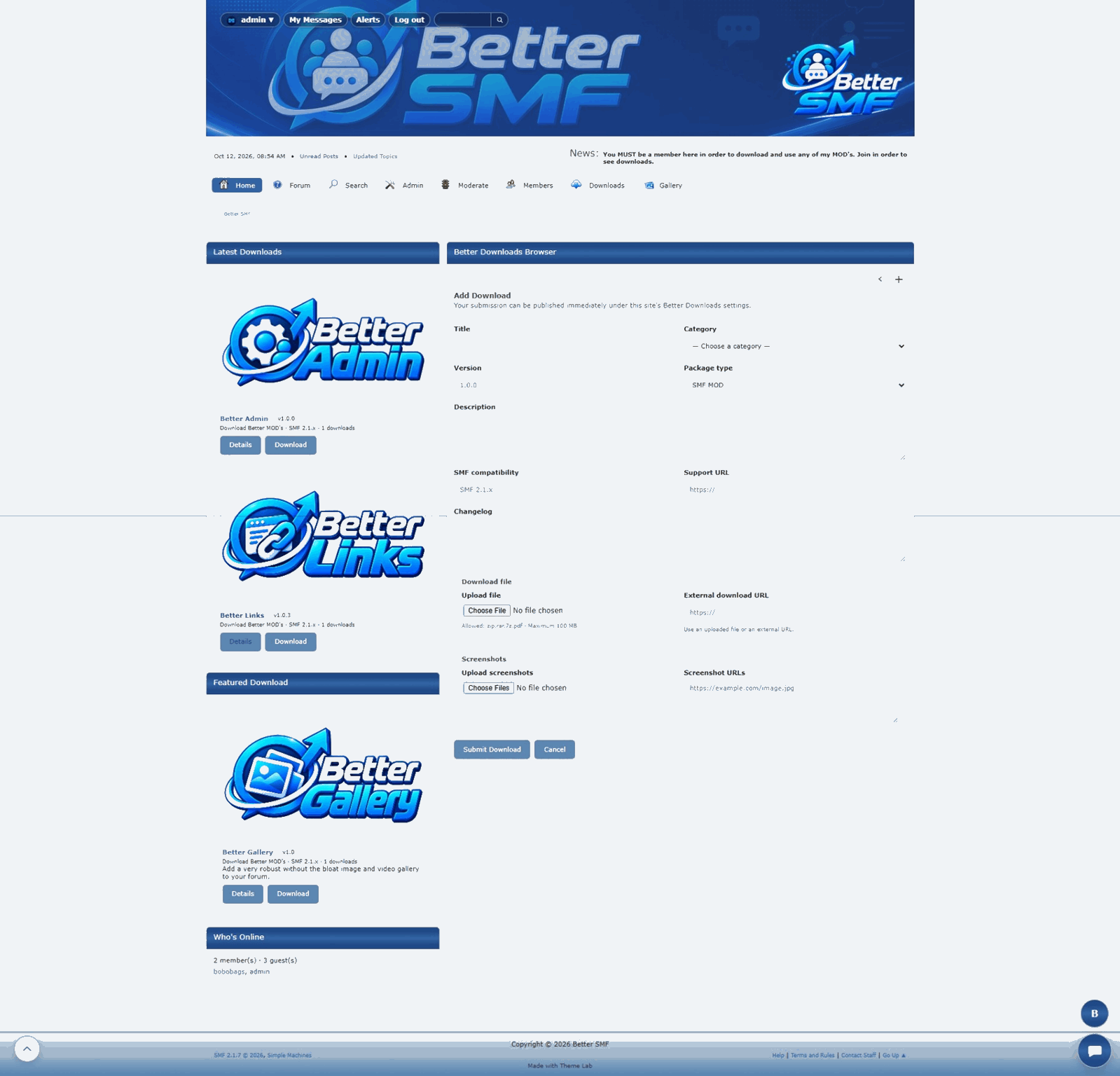
12. Build a complete Downloads page
Better Portal makes it possible to combine several Downloads blocks into one polished page.
For example, you might use:
This gives visitors both quick recommendations and access to the full file library.
13. Check narrow-column layouts
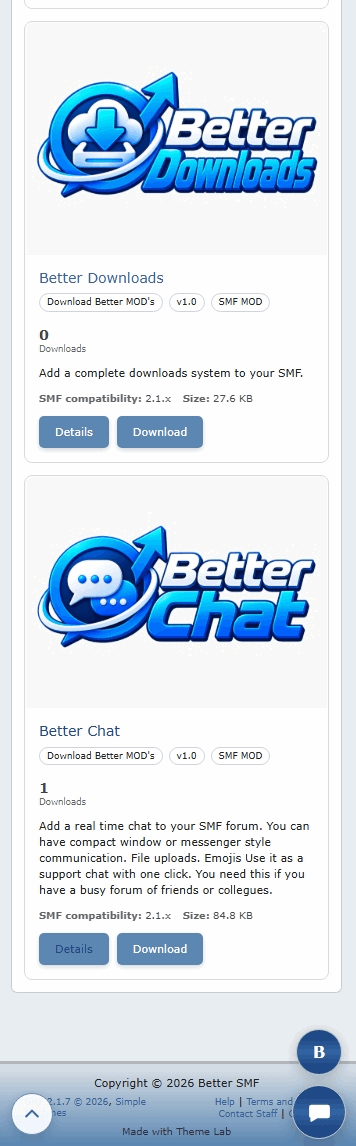
Better Downloads blocks are designed to work in different Portal column widths.
If a block is placed in a narrow side column, content can stack vertically instead of becoming cramped.
That makes the same download blocks useful across many Portal layouts.
14. Test submissions as a normal member
If members are allowed to submit downloads, log in with a regular account and test the process.
Check:
If member submissions are disabled, confirm that normal members do not see submission controls.
15. Test the mobile experience
Open the Downloads area from a phone or smaller browser window.
Make sure:
Keep the library organized as it grows
A downloads system becomes more useful as content grows, but only if the structure remains clear.
Use sensible categories.
Give downloads meaningful titles and descriptions.
Add screenshots where they help.
And keep old or obsolete content under control.
The goal is to make finding a file easier than searching through years of forum attachments.
A proper download library inside SMF
Better Downloads gives SMF a dedicated place for downloadable content without forcing your community onto a separate website.
Organize files into categories.
Give every download its own page.
Show screenshots.
Track activity.
Bring downloads into Better Portal.
And keep the entire experience connected to your forum.
SMF handles forum discussions extremely well, but when your community starts sharing software, MODs, themes, documents, or other files, forum attachments can become difficult to organize.
Better Downloads adds a dedicated downloads system to SMF 2.1 so files can be categorized, presented properly, tracked, and connected to the rest of your site.
This guide walks through the basic setup.
1. Open Better Downloads in the Admin Center
After installing Better Downloads, open the SMF Admin Center and go to Better Downloads.
This is where you manage categories, downloads, settings, and submission permissions.
2. Configure the main settings
Start with the main Better Downloads settings.
Depending on how you want the system to work, you can configure options such as:
- Whether Downloads appears in the main menu
- Who is allowed to submit downloads
- General display behavior
- Download and screenshot settings
- Other site-wide preferences
A good first step is deciding whether the library will be staff-managed or open to member submissions.
3. Decide who can submit downloads
Better Downloads can be used in different ways.
Some communities may want members to contribute their own files.
Others may want the Downloads area to contain only official releases managed by staff.
Better Downloads lets you control which member groups are allowed to submit content.
That makes it useful for:
- Official software libraries
- Community file sharing
- SMF MOD repositories
- Theme libraries
- Resource centers
4. Create download categories
Categories keep the library organized.
Before adding a large number of files, create a clear category structure.
For example:
- MODs
- Themes
- Graphics
- Utilities
- Documentation
A simple structure makes the library easier to browse and easier to maintain later.
5. Add your first download
Once your categories are ready, create a new download.
Enter the basic information visitors will need.
Depending on the item, that can include:
- Download title
- Description
- Category
- File
- Screenshots
- Other download information
A dedicated download page gives the file much more context than simply attaching it to a forum post.
6. Add screenshots
Better Downloads can display multiple screenshots for a download.
This is especially useful for:
- SMF MODs
- Themes
- Applications
- Games and tools
- Other visual projects
Screenshots help visitors understand what they are downloading before they commit to the file.
7. Review the public download page
After creating the item, open it from the public Downloads area.
This is the page visitors will use to learn about and download the file.
Check things such as:
- Title and description
- Screenshot presentation
- Download button
- Category information
- Download statistics
- Overall layout
8. Test the category browser
Return to the main Downloads area and browse the categories the way a visitor would.
Make sure the structure is easy to understand and that files appear where you expect them.
A good download library should let someone find what they need without already knowing the exact file name.
9. Use download statistics
Better Downloads can track download activity.
This helps show which files are receiving attention and makes it possible to surface popular content elsewhere on the site.
Download statistics can also be useful when deciding:
- Which projects are most popular
- Which downloads should be featured
- Which older files may need attention
10. Add Better Downloads to Better Portal
If Better Portal is installed, download content can be displayed directly inside Portal pages.
Available blocks can include things such as:
- Latest Downloads
- Most Downloaded
- Featured Downloads
- Interactive Downloads Browser
This makes it easy to build a complete Downloads landing page without manually copying download information into Custom Text blocks.
11. Use the Interactive Downloads Browser
One of the most useful Better Portal integrations is the Interactive Downloads Browser.
It allows visitors to browse the Downloads system directly inside a Portal page.
They can move through the workflow without leaving the page:
- Choose a category
- View the downloads inside it
- Open an individual download
- Review the item details
- Download the file
Where submissions are enabled, permitted members can also reach the Add Download workflow from the same interface.
12. Build a complete Downloads page
Better Portal makes it possible to combine several Downloads blocks into one polished page.
For example, you might use:
- Featured Download near the top
- Latest Downloads underneath
- Most Downloaded alongside it
- Interactive Downloads Browser below everything else
This gives visitors both quick recommendations and access to the full file library.
13. Check narrow-column layouts
Better Downloads blocks are designed to work in different Portal column widths.
If a block is placed in a narrow side column, content can stack vertically instead of becoming cramped.
That makes the same download blocks useful across many Portal layouts.
14. Test submissions as a normal member
If members are allowed to submit downloads, log in with a regular account and test the process.
Check:
- Whether the member can access Add Download
- Whether the correct categories are available
- Whether file uploads work
- Whether screenshots can be added
- Whether the finished download displays correctly
If member submissions are disabled, confirm that normal members do not see submission controls.
15. Test the mobile experience
Open the Downloads area from a phone or smaller browser window.
Make sure:
- Category listings remain readable
- Download pages fit the screen
- Screenshots display cleanly
- Buttons remain easy to use
- Portal blocks stack properly
Keep the library organized as it grows
A downloads system becomes more useful as content grows, but only if the structure remains clear.
Use sensible categories.
Give downloads meaningful titles and descriptions.
Add screenshots where they help.
And keep old or obsolete content under control.
The goal is to make finding a file easier than searching through years of forum attachments.
A proper download library inside SMF
Better Downloads gives SMF a dedicated place for downloadable content without forcing your community onto a separate website.
Organize files into categories.
Give every download its own page.
Show screenshots.
Track activity.
Bring downloads into Better Portal.
And keep the entire experience connected to your forum.
Organize it. Showcase it. Download it.
#9
Better Chat / How to Add Live Chat to SMF 2....
Last post by admin - Oct 11, 2026, 09:34 AMHow to Add Live Chat to SMF 2.1 with Better Chat
SMF is built around forum discussions, but sometimes members need a faster way to communicate.
Better Chat adds real-time private chat, group chat, and optional live support directly to SMF 2.1 without forcing your community to rely on a separate messaging service.
This guide walks through the basic setup.
1. Open Better Chat in the Admin Center
After installing Better Chat, open the SMF Admin Center and go to the Better Chat settings area.
This is where you control how chat behaves across the forum.
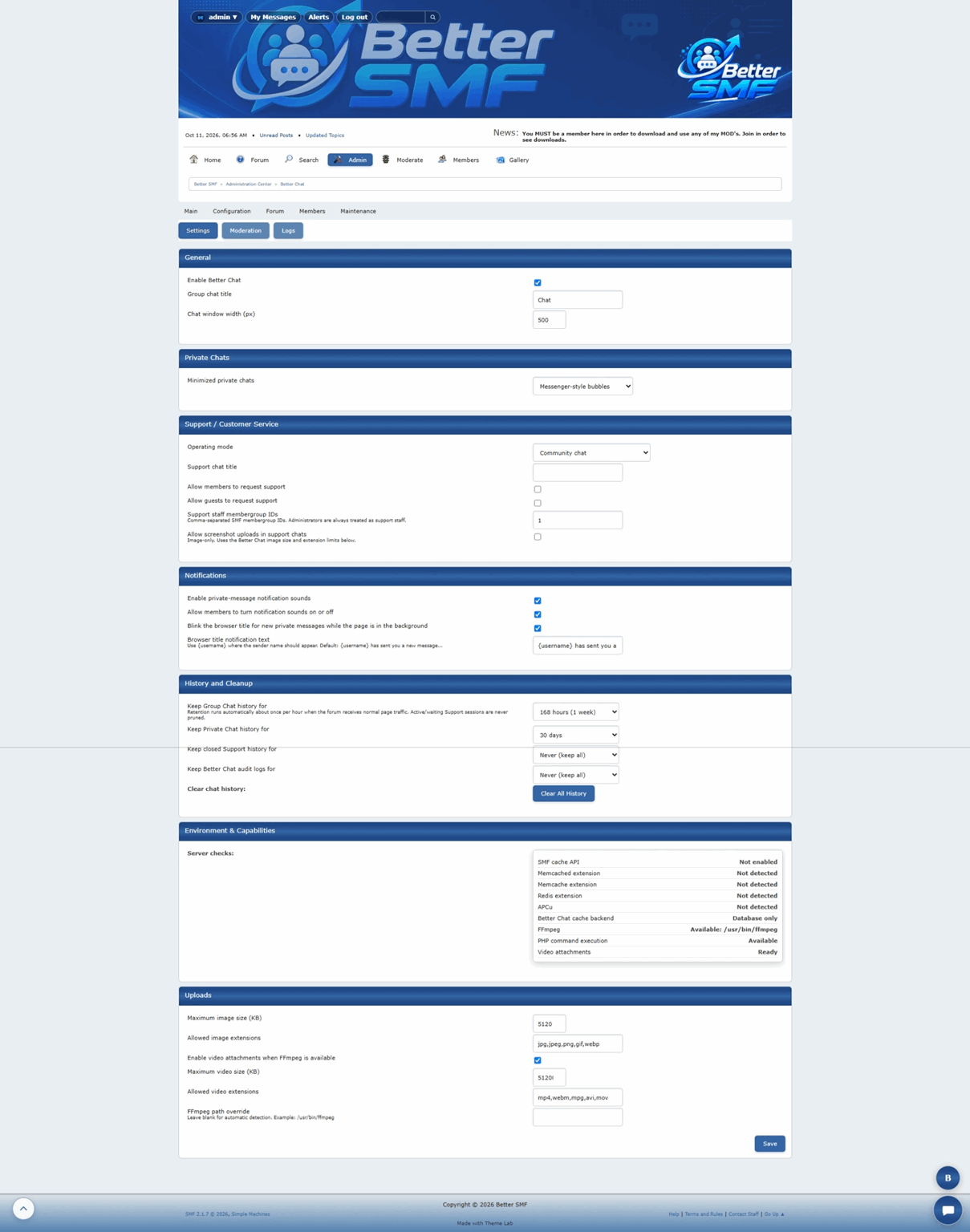
2. Enable the chat features you want
Better Chat can support several different types of conversation.
Depending on how you want your community to use it, you can enable features such as:
You do not have to use every feature.
A small forum might only need private chat, while a larger community may want private, group, and support chat together.
3. Configure private chat
Private chat gives members a fast way to communicate one-on-one without leaving the page they are already viewing.
Once enabled, members can open private conversations and continue browsing the forum while those conversations remain available.
This is useful for:
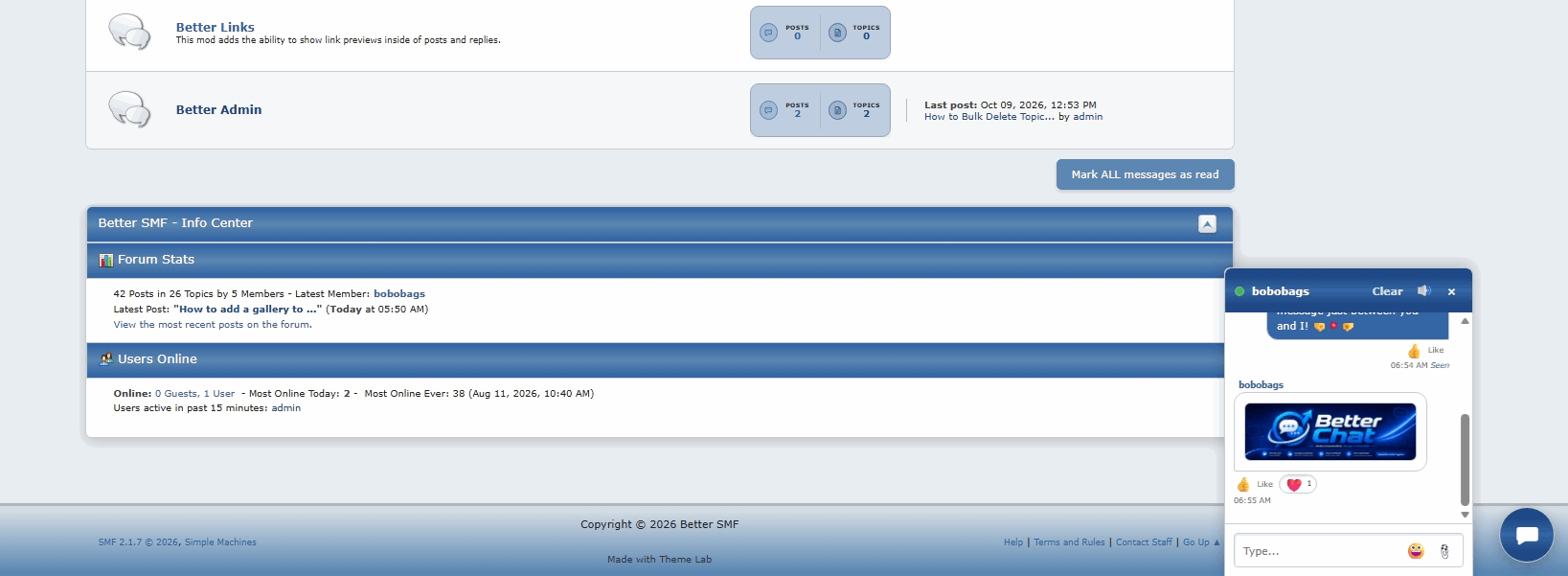
4. Test minimized chat bubbles
Better Chat can minimize private conversations into Messenger-style chat bubbles along the side of the page.
This keeps conversations available without covering the forum.
Minimized bubbles can make it easier to:
5. Enable group chat
If your community needs a shared live conversation, enable group chat.
Group chat works well for:
Private and group conversations remain separate, so members always know what type of chat they are using.
6. Set up Support / Customer Service Mode
Better Chat can also provide live support directly through the forum.
When Support Mode is enabled, members — and guests if you allow them — can request help from staff who are currently available.
This creates a much more immediate support experience than waiting for a forum reply or private message.
7. Put staff on duty
Support chat is built around real staff availability.
Staff members can go on duty when they are available to answer support requests.
This prevents visitors from seeing an active support option when nobody is actually available to help.
Depending on your setup, Better Chat can show who is available and route incoming requests into a support queue.
8. Accept a support request
When a visitor starts a support conversation, on-duty staff can see the incoming request.
A staff member can accept the conversation and begin helping the visitor immediately.
The support workflow can include:
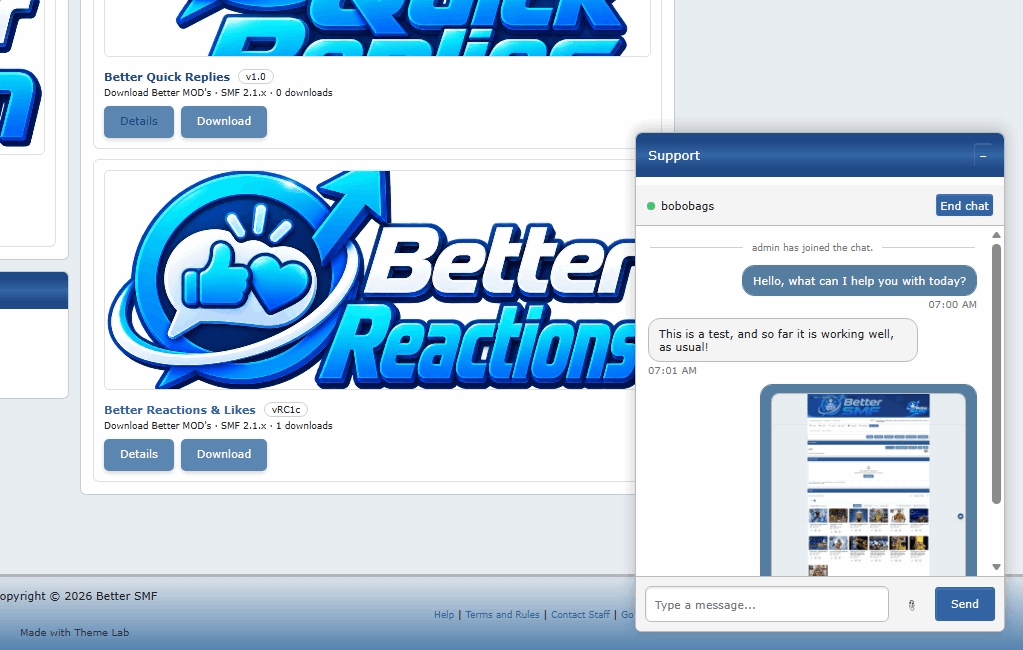
9. Decide whether guests can use support chat
If guest support is enabled, visitors can contact staff without first registering.
This can be especially useful for:
If you prefer to keep chat members-only, guest support can remain disabled.
10. Configure reactions if Better Reactions & Likes is installed
Better Chat can integrate with Better Reactions & Likes.
When enabled, members can react to chat messages without sending another message.
That keeps chat interaction consistent with forum posts and other Better SMF features.
11. Configure chat restrictions
Live chat needs moderation controls just like the rest of the forum.
Better Chat can restrict members from different parts of the chat system when necessary.
Restrictions can include:
You can also provide a reason and duration so the member knows why access has been restricted.
12. Review chat logs
Administrators can review Better Chat history through the admin area.
Separate logs can be available for:
This makes it easier to manage activity, investigate problems, and keep old data under control.
Depending on your settings, older history can also be pruned automatically.
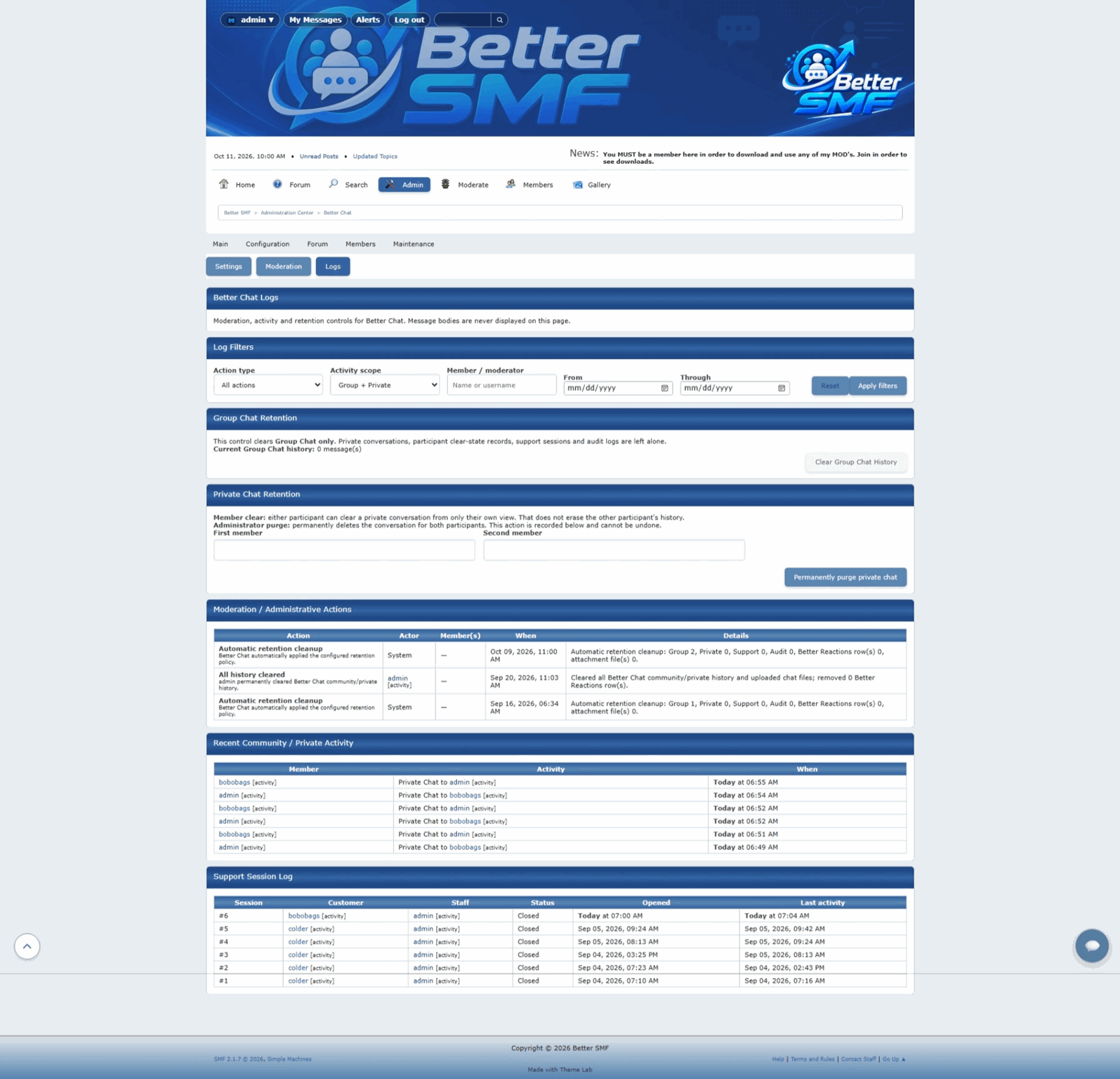
13. Test Better Chat as a normal member
Before considering the setup complete, log in with a regular member account and test the system from the user's point of view.
Check:
This is the best way to catch permission or usability issues that may not be obvious from an administrator account.
14. Test Support Mode from both sides
If you are using Support / Customer Service Mode, test it as both the visitor and the staff member.
Make sure:
If guest support is enabled, test that separately too.
15. Check the mobile experience
Chat is often used from phones, so mobile testing is especially important.
Make sure:
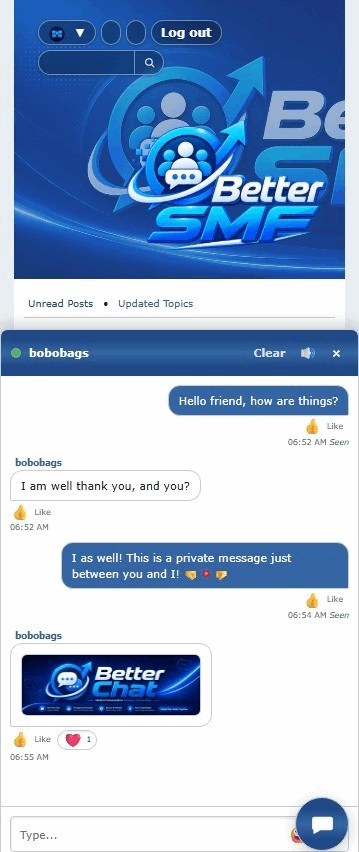
Live chat without leaving SMF
Better Chat is designed to add real-time communication without replacing the forum itself.
Forum topics remain the best place for long-term discussion.
Private messages still have their place.
Better Chat simply gives members and staff another option when waiting for a reply does not make sense.
You can use it for private conversation.
You can use it for community group chat.
You can even turn it into a live customer-service system.
And it all stays inside SMF.
SMF is built around forum discussions, but sometimes members need a faster way to communicate.
Better Chat adds real-time private chat, group chat, and optional live support directly to SMF 2.1 without forcing your community to rely on a separate messaging service.
This guide walks through the basic setup.
1. Open Better Chat in the Admin Center
After installing Better Chat, open the SMF Admin Center and go to the Better Chat settings area.
This is where you control how chat behaves across the forum.
2. Enable the chat features you want
Better Chat can support several different types of conversation.
Depending on how you want your community to use it, you can enable features such as:
- Private member-to-member chat
- Group chat
- Support / Customer Service Mode
- Guest support access
- Reactions inside chat
You do not have to use every feature.
A small forum might only need private chat, while a larger community may want private, group, and support chat together.
3. Configure private chat
Private chat gives members a fast way to communicate one-on-one without leaving the page they are already viewing.
Once enabled, members can open private conversations and continue browsing the forum while those conversations remain available.
This is useful for:
- Quick questions
- Member coordination
- Private discussions
- Staff communication
4. Test minimized chat bubbles
Better Chat can minimize private conversations into Messenger-style chat bubbles along the side of the page.
This keeps conversations available without covering the forum.
Minimized bubbles can make it easier to:
- Switch between conversations
- See unread activity
- Keep browsing while chatting
- Reopen a conversation quickly
5. Enable group chat
If your community needs a shared live conversation, enable group chat.
Group chat works well for:
- General community discussion
- Events
- Game nights
- Project coordination
- Staff chat
Private and group conversations remain separate, so members always know what type of chat they are using.
6. Set up Support / Customer Service Mode
Better Chat can also provide live support directly through the forum.
When Support Mode is enabled, members — and guests if you allow them — can request help from staff who are currently available.
This creates a much more immediate support experience than waiting for a forum reply or private message.
7. Put staff on duty
Support chat is built around real staff availability.
Staff members can go on duty when they are available to answer support requests.
This prevents visitors from seeing an active support option when nobody is actually available to help.
Depending on your setup, Better Chat can show who is available and route incoming requests into a support queue.
8. Accept a support request
When a visitor starts a support conversation, on-duty staff can see the incoming request.
A staff member can accept the conversation and begin helping the visitor immediately.
The support workflow can include:
- Incoming request queue
- Staff acceptance
- Dedicated support window
- Join notifications
- End Chat controls
9. Decide whether guests can use support chat
If guest support is enabled, visitors can contact staff without first registering.
This can be especially useful for:
- Registration questions
- Account access problems
- Download questions
- Pre-membership support
- General site assistance
If you prefer to keep chat members-only, guest support can remain disabled.
10. Configure reactions if Better Reactions & Likes is installed
Better Chat can integrate with Better Reactions & Likes.
When enabled, members can react to chat messages without sending another message.
That keeps chat interaction consistent with forum posts and other Better SMF features.
11. Configure chat restrictions
Live chat needs moderation controls just like the rest of the forum.
Better Chat can restrict members from different parts of the chat system when necessary.
Restrictions can include:
- Private chat only
- Group chat only
- All Better Chat activity
You can also provide a reason and duration so the member knows why access has been restricted.
12. Review chat logs
Administrators can review Better Chat history through the admin area.
Separate logs can be available for:
- Private conversations
- Group chat
- Support conversations
This makes it easier to manage activity, investigate problems, and keep old data under control.
Depending on your settings, older history can also be pruned automatically.
13. Test Better Chat as a normal member
Before considering the setup complete, log in with a regular member account and test the system from the user's point of view.
Check:
- Starting a private chat
- Minimizing and reopening conversations
- Unread indicators
- Group chat
- Reactions
- Restrictions
- Mobile behavior
This is the best way to catch permission or usability issues that may not be obvious from an administrator account.
14. Test Support Mode from both sides
If you are using Support / Customer Service Mode, test it as both the visitor and the staff member.
Make sure:
- Visitors can see when staff are available
- Requests reach the staff queue
- Staff can accept the conversation
- Messages appear correctly for both sides
- The conversation can be ended cleanly
If guest support is enabled, test that separately too.
15. Check the mobile experience
Chat is often used from phones, so mobile testing is especially important.
Make sure:
- Chat windows fit the screen
- Buttons remain reachable
- Minimized bubbles do not cover important content
- Messages remain readable
- Support controls still work cleanly
Live chat without leaving SMF
Better Chat is designed to add real-time communication without replacing the forum itself.
Forum topics remain the best place for long-term discussion.
Private messages still have their place.
Better Chat simply gives members and staff another option when waiting for a reply does not make sense.
You can use it for private conversation.
You can use it for community group chat.
You can even turn it into a live customer-service system.
And it all stays inside SMF.
Talk now. Stay connected. Keep it inside SMF.
#10
Better Gallery / How to add a gallery to SMF 2....
Last post by admin - Oct 11, 2026, 05:50 AMHow to Add a Gallery to SMF 2.1 with Better Gallery
SMF is great at discussions, but sometimes a community needs a proper place for images too.
Better Gallery adds a dedicated gallery system to SMF 2.1 so members can browse albums, upload images, view them in a lightbox, comment, react, and use Gallery content throughout the rest of the site.
This guide walks through the basic setup.
1. Open Better Gallery in the Admin Center
After installing Better Gallery, open the SMF Admin Center and go to Better Gallery.
This is where you configure the Gallery and control how members are allowed to use it.
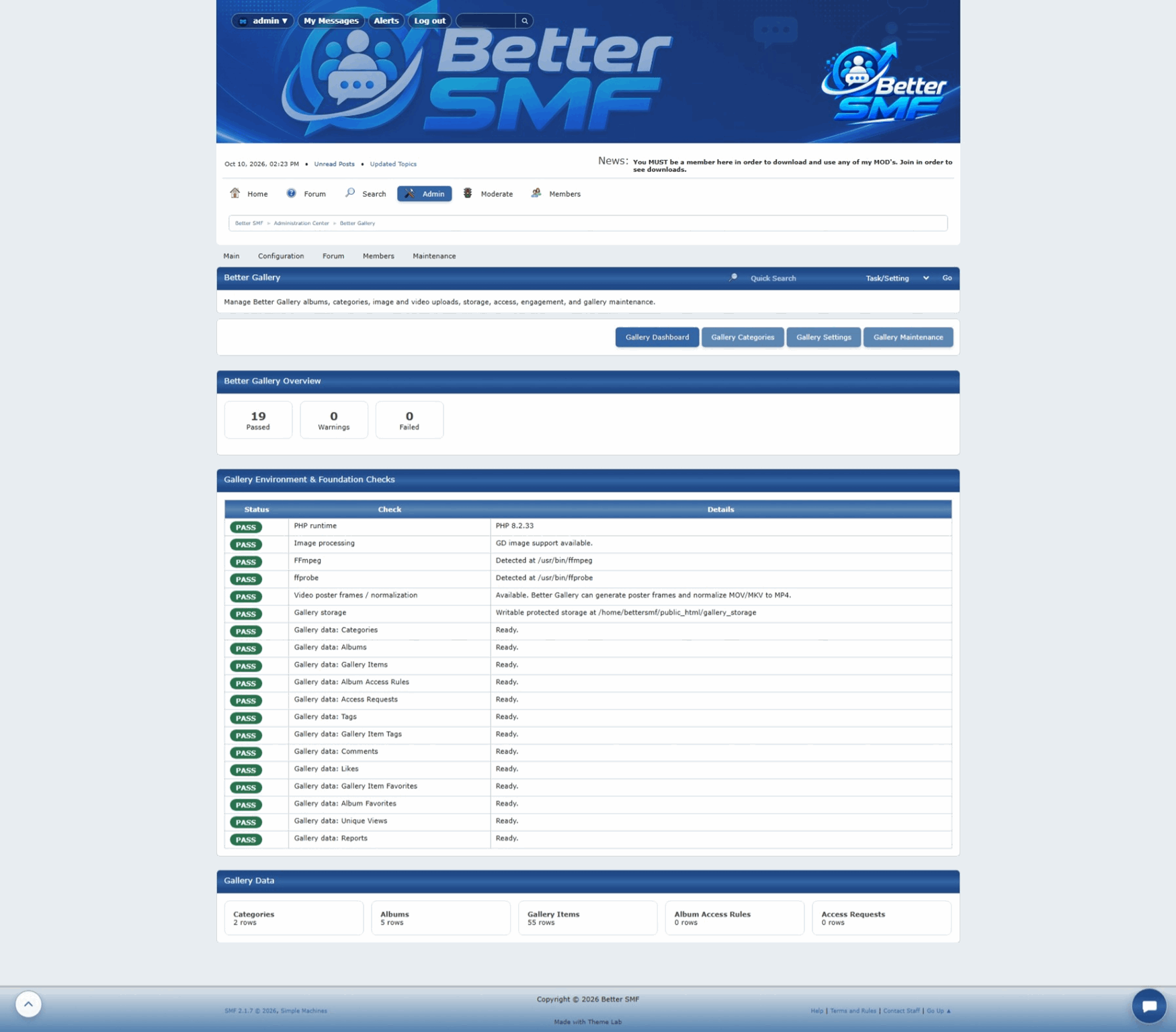
2. Configure the main Gallery settings
Start with the main settings page.
Depending on your setup, you can control things such as:
Set the basics first, then fine-tune the details after you have tested the Gallery from a normal member account.
3. Set permissions
Permissions are one of the most important parts of Gallery setup.
Decide which member groups should be able to:
This lets you keep Gallery access consistent with the rest of your SMF permissions.
For example, you might allow everyone to view images but only registered members to upload them.
4. Create an album
Albums are how Better Gallery organizes images.
Create an album and give it a clear title and description.
Albums can be used for things like:
A good album structure makes the Gallery much easier to browse as it grows.
5. Upload images
Open the album and upload your images.
Once uploaded, the images become part of the Gallery and can be viewed without relying on forum attachments.
This is useful when you want a permanent, organized home for screenshots or other image collections.
6. Browse the album
After images have been uploaded, open the album from the public Gallery.
Better Gallery displays the images in a clean layout so members can browse the collection without leaving the forum experience.
This is where you can check:
7. Open an image in the lightbox
Clicking an image can open it in Better Gallery's lightbox.
The lightbox gives members a larger view of the image while keeping them connected to the album.
Depending on your settings and permissions, additional actions can also be available from the image view.
 8. Allow image downloads when appropriate
Better Gallery can allow image downloads on albums where you want that option available.
This is useful for:
If downloads are disabled for an album, the download option stays hidden.
That keeps the interface clean and prevents users from being offered an action they are not allowed to use.
9. Use comments and reactions
Gallery content can also become part of the community discussion.
Where enabled, members can comment on Gallery images.
If Better Reactions & Likes is installed, Gallery content can also use the same reaction system found elsewhere on the forum.
That gives members a familiar way to interact with images without creating a completely separate experience.
10. Display Gallery content in Better Portal
If Better Portal is installed, Gallery content can be used directly inside Portal pages.
This is especially useful for landing pages.
For example, you can create an album containing screenshots for a MOD and then use the Selected Gallery Album block to display those images in the Portal page.
That means the page can show live Gallery content without copying the same images into multiple places.
Update the album later and the page stays easy to maintain.
11. Use Better Gallery for screenshots and tutorials
Better Gallery is useful for more than photo sharing.
It can also become the central image library for your site.
For example, you can use it to manage:
Images can then be used in Portal pages, forum posts, and other Better SMF content.
12. Test the Gallery as a regular member
Before considering the setup complete, log in with a normal member account and test the Gallery the way your users will experience it.
Check:
This is the best way to catch permission or usability issues before members run into them.
Keep the Gallery organized
The most important part of running a useful Gallery is keeping it easy to browse.
Use clear album names.
Group related images together.
Avoid creating unnecessary duplicate albums.
And use Gallery permissions to make sure members see only what they are supposed to see.
Better Gallery is designed to give SMF communities a dedicated image system without making the site feel like it has been split into separate applications.
SMF is great at discussions, but sometimes a community needs a proper place for images too.
Better Gallery adds a dedicated gallery system to SMF 2.1 so members can browse albums, upload images, view them in a lightbox, comment, react, and use Gallery content throughout the rest of the site.
This guide walks through the basic setup.
1. Open Better Gallery in the Admin Center
After installing Better Gallery, open the SMF Admin Center and go to Better Gallery.
This is where you configure the Gallery and control how members are allowed to use it.
2. Configure the main Gallery settings
Start with the main settings page.
Depending on your setup, you can control things such as:
- Whether the Gallery is enabled
- Whether Gallery appears in the main menu
- Upload behavior
- Image display options
- Album behavior
- Download options
- Other Gallery preferences
Set the basics first, then fine-tune the details after you have tested the Gallery from a normal member account.
3. Set permissions
Permissions are one of the most important parts of Gallery setup.
Decide which member groups should be able to:
- View Gallery content
- Create albums
- Upload images
- Manage their own Gallery content
- Comment where allowed
- Download images where allowed
This lets you keep Gallery access consistent with the rest of your SMF permissions.
For example, you might allow everyone to view images but only registered members to upload them.
Screenshot: Better Gallery permissions
4. Create an album
Albums are how Better Gallery organizes images.
Create an album and give it a clear title and description.
Albums can be used for things like:
- MOD screenshots
- Project images
- Community photos
- Artwork
- Game screenshots
- Tutorial images
A good album structure makes the Gallery much easier to browse as it grows.
5. Upload images
Open the album and upload your images.
Once uploaded, the images become part of the Gallery and can be viewed without relying on forum attachments.
This is useful when you want a permanent, organized home for screenshots or other image collections.
6. Browse the album
After images have been uploaded, open the album from the public Gallery.
Better Gallery displays the images in a clean layout so members can browse the collection without leaving the forum experience.
This is where you can check:
- Thumbnail size
- Image spacing
- Album information
- Navigation
- Available actions
7. Open an image in the lightbox
Clicking an image can open it in Better Gallery's lightbox.
The lightbox gives members a larger view of the image while keeping them connected to the album.
Depending on your settings and permissions, additional actions can also be available from the image view.
Better Gallery can allow image downloads on albums where you want that option available.
This is useful for:
- Downloadable artwork
- Reference images
- MOD screenshots
- Community resources
If downloads are disabled for an album, the download option stays hidden.
That keeps the interface clean and prevents users from being offered an action they are not allowed to use.
9. Use comments and reactions
Gallery content can also become part of the community discussion.
Where enabled, members can comment on Gallery images.
If Better Reactions & Likes is installed, Gallery content can also use the same reaction system found elsewhere on the forum.
That gives members a familiar way to interact with images without creating a completely separate experience.
10. Display Gallery content in Better Portal
If Better Portal is installed, Gallery content can be used directly inside Portal pages.
This is especially useful for landing pages.
For example, you can create an album containing screenshots for a MOD and then use the Selected Gallery Album block to display those images in the Portal page.
That means the page can show live Gallery content without copying the same images into multiple places.
Update the album later and the page stays easy to maintain.
11. Use Better Gallery for screenshots and tutorials
Better Gallery is useful for more than photo sharing.
It can also become the central image library for your site.
For example, you can use it to manage:
- Product screenshots
- Tutorial images
- Before-and-after examples
- Support screenshots
- Development progress images
Images can then be used in Portal pages, forum posts, and other Better SMF content.
12. Test the Gallery as a regular member
Before considering the setup complete, log in with a normal member account and test the Gallery the way your users will experience it.
Check:
- Album access
- Image uploads
- Image viewing
- Comments
- Reactions
- Downloads
- Mobile layout
This is the best way to catch permission or usability issues before members run into them.
Keep the Gallery organized
The most important part of running a useful Gallery is keeping it easy to browse.
Use clear album names.
Group related images together.
Avoid creating unnecessary duplicate albums.
And use Gallery permissions to make sure members see only what they are supposed to see.
Better Gallery is designed to give SMF communities a dedicated image system without making the site feel like it has been split into separate applications.
Your images. Your albums. Your community.